
A deployment is where you run microsimulations for a group of learners. This article shows how to add a multiplayer microsimulation to a deployment and schedule its session. For single player microsimulations, see Enrol a deployment in a single player microsimulation.
Before you start
- The microsimulation is Ready, not Draft, in My Microsimulations.
- The deployment exists. Select Microsimulations, then Deployments, and open it.
- You know who will facilitate the session.
Add the microsimulation
- In the deployment, open the Microsimulations page.
- Select + Add Microsim.
- In Select microsim, choose the Multi player tab. Use the search box if your list is long.
- Select the microsimulation, then select Setup session.
Set up the session
The Setup Multiplayer Session dialog has three steps.
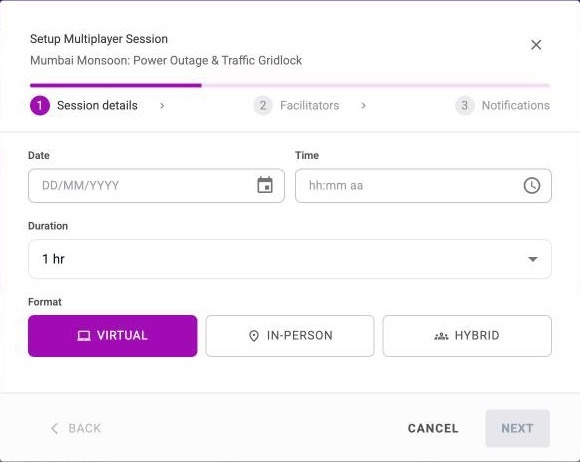
Setup Multiplayer Session, step 1: Session details
1. Session details
- Date and Time: when the session starts.
- Duration: how long it runs. The default is 1 hr.
- Format: Virtual, In-person or Hybrid.
2. Facilitators. Search by name and select at least one facilitator. You can't continue until you choose one.
3. Notifications
- Send email invitations: choose Yes to email participants the session details and a calendar invite.
- Include Microsoft Teams meeting: if you send invitations, choose Yes to add a Teams meeting link. It's set to No by default.
Select Review to check your choices.
Review and confirm
The Ready to Deploy screen lists the simulation, the deployment type (Multiplayer Session), the date, format and duration, and the facilitator. If email invitations are on, it tells you participants will receive them immediately.
Select Confirm to create the session. Select Back to change something, or Cancel to stop without creating anything.
Enrol participants
Open the Enrolments page of the deployment. It lists every learner with their job title, email and team or group.
- Select + Enrol learners, choose the Teams, Groups or People tab, select who to add, then select Enrol learners.
- Select Self enrol to open the Self-Enrol dialog with a link and QR code you can send to anyone you want to add. They get an email with their own Learnspace access once they have enrolled. You can Copy the link, Copy QR or Save QR.
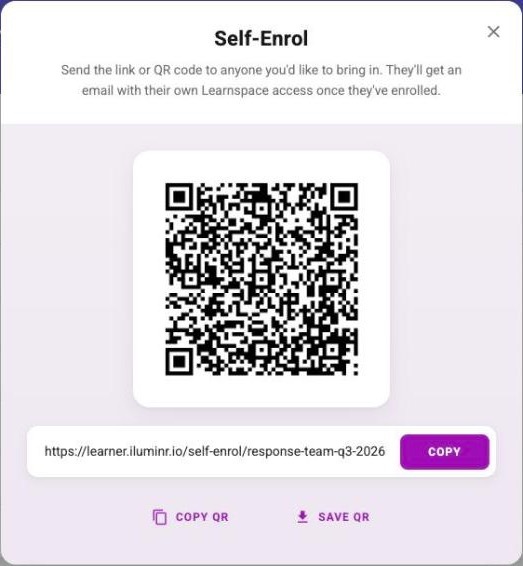
The Self-Enrol dialog with the QR code and link
Participants join with the link or QR code from Self enrol on the Enrolments page. Self-enrolment is on by default for multiplayer microsimulations in a deployment (it is off by default for single player), so there is no squad-level switch to turn on first.
Run the session
After you confirm, the session appears as a card on the deployment's Microsimulations page, with its date, number of participants and an Enter Event Room button. Facilitators use that button on the day.