
Ask AI lets you ask questions about a single player report in plain language. It answers from the report's results and shows which sources it used, so you can check them.
Use it when the report raises a more specific question, such as who needs support first, or why the group struggled on a question.
Ask AI needs AI insights to be switched on for your account. If you don't see it working, ask your Customer Success Manager.
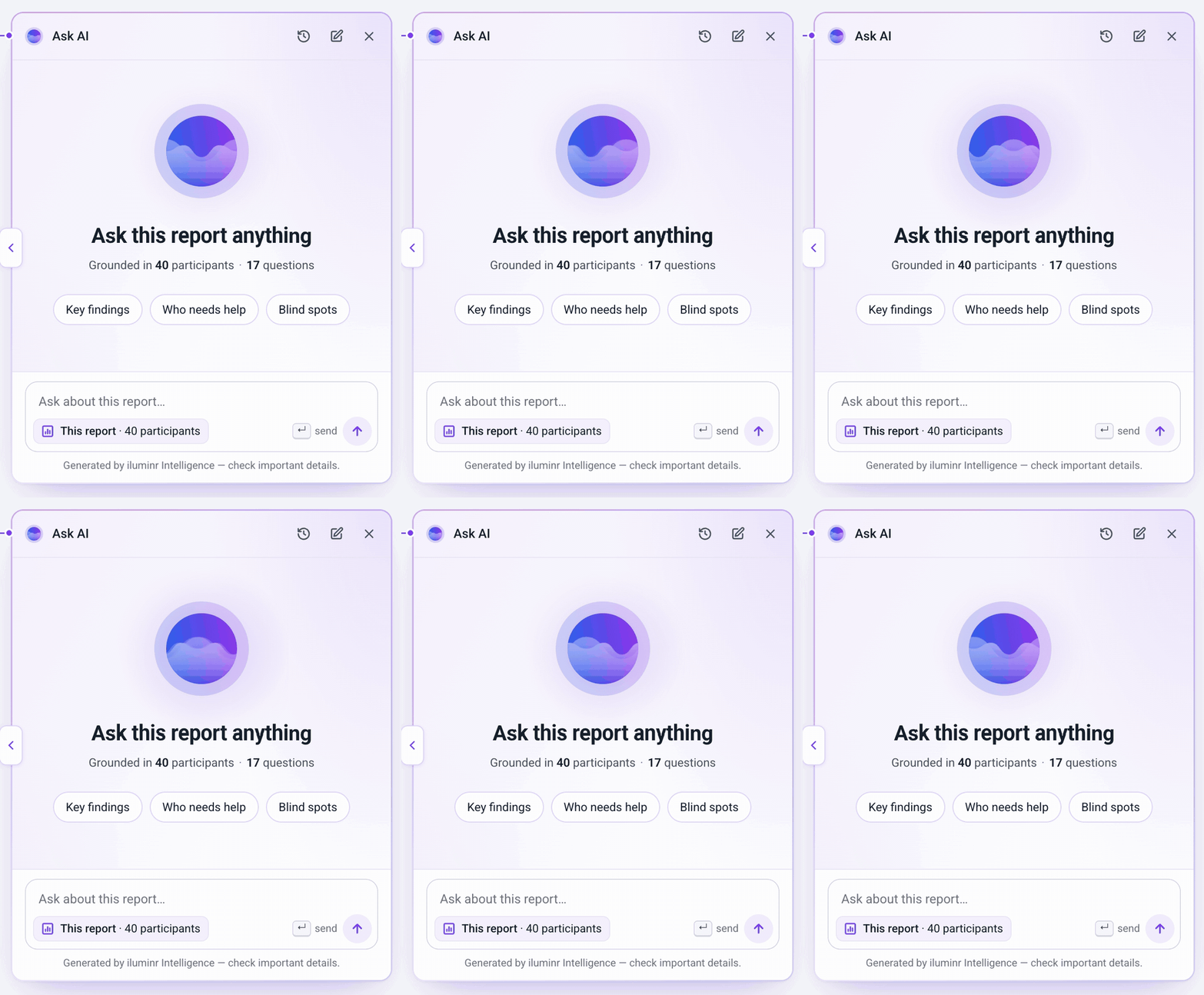
The Ask AI panel on a single player report
Open Ask AI
The Ask AI button is at the top right of every tab of the report, next to Filters and Export. Its label shows what Ask AI will look at, based on where you are:
| Where you are | Button label (example) |
|---|---|
| OVERVIEW tab | Ask AI · about this report |
| A question on the QUESTIONS tab | Ask AI · about Q3 |
| The PARTICIPANTS list | Ask AI · about these 40 participants |
| One participant | Ask AI · about Kenji |
Select the button to open the Ask AI panel at the side of the report. While it's open, the button reads Ask AI · open.
At the top of the panel you can:
- Select the clock icon to see your earlier chats.
- Select the pencil icon to start a new chat.
- Select X to close the panel.
To make the panel wider, select the < handle on its left edge.
Your chat history is saved for each report and is private to you. Other people with access to the deployment can't see your chats.
Ask a question
When you start a chat, the panel shows what it's grounded in, for example Ask this report anything and Grounded in 40 participants · 17 questions. When you open it from a question or a participant, the heading changes, for example Ask anything about Q3 or Ask anything about Kenji.
- Select a starter prompt, or type your own question in the box (for example Ask about this report… or Ask about Kenji…). Starter prompts include Key findings, Who needs help and Blind spots for the whole report, and Key findings, Where to help and Blind spots for a participant. A starter prompt fills in a full question for you, for example "Where does Kenji need the most support?". You can edit it before you send it.
- Check the scope chip under the box. It shows what the answer will cover, for example This report · 40 participants, Q3 or Kenji.
- Press Enter, or select the send arrow.
If you've used Ask AI before, Pick up where you left off lists your recent chats on this report so you can carry on.
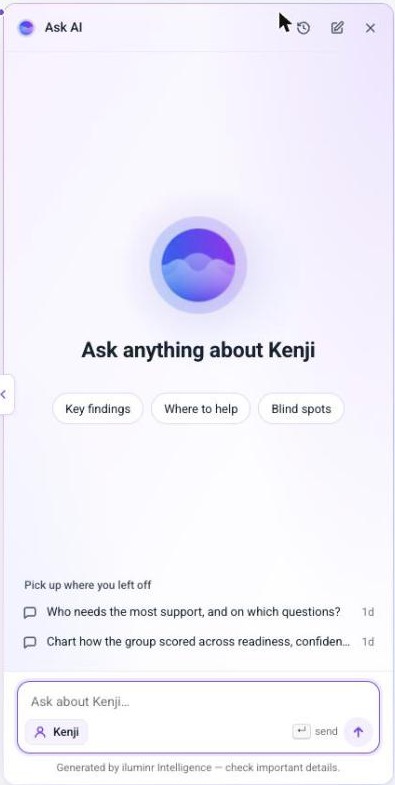
Ask AI opened from a participant: the starter prompts, your recent chats and the question box with the Kenji scope chip.
How the scope follows you
Ask AI looks at what you're viewing when you open it:
- The OVERVIEW tab: the whole report.
- A question on the QUESTIONS tab: that question.
- The PARTICIPANTS tab: the participants in the list.
- One participant's results: that participant only.
To ask about something else, go to that part of the report and open Ask AI from there.
How an answer is built
Ask AI doesn't answer straight away. While it works, you'll see:
- Thinking (or Reading the report), with a timer.
- The steps it takes, such as looking up a question, the insights or the participant list. Open Thinking to see them.
- A source count that grows as it reads, for example 13 sources · 1 participant, 7 insights, 5 actions.
- The answer, which appears as it's written.
The title of the chat becomes your first question.
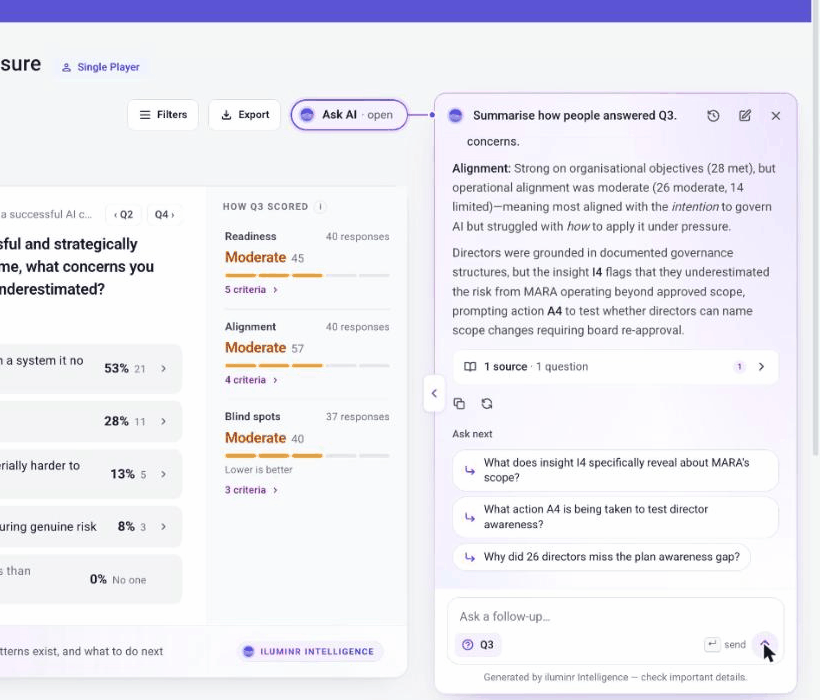
An answer about Q3, with its sources and Ask next suggestions
Check the sources
Each answer ends with a sources bar, for example 1 source · 1 question. The numbered chips match the numbers in the answer. Select the bar, or a number, to open the source the answer came from.
Under the sources are two icons: copy, to copy the answer, and retry, to ask for the answer again.
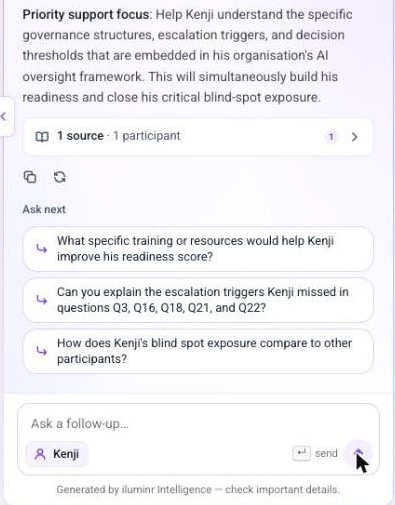
The end of an answer about a participant: the sources bar, the copy and retry icons, Ask next and the Ask a follow-up box.
Ask a follow-up
Under Ask next, Ask AI suggests follow-up questions based on its answer. Select one to ask it, or type your own in the Ask a follow-up… box.
Check important details
Answers are written by AI and labelled Generated by iluminr Intelligence, with a reminder to check important details. Before you share an answer or act on it, open its sources and check the numbers and names against the report.
Tips for good questions
- Ask one thing at a time.
- Be specific about who or what you mean: a question number, a signal, or a participant.
- Ask what you'd do next, not only what happened.
Some questions to try:
- Who needs help first?
- Which questions did the group struggle with?
- What should we do next?
What Ask AI can't do
- It can't draw charts or other visuals. Answers are text, sometimes with a simple table.
- It can filter by individual participants, but not by role, team or group.
- It answers from this report's results only.
- It only sees what the report already shows. Anyone with access to the deployment can open the report and each participant's results.