
This article covers creating a report, choosing and ordering its sections, adding your own writing, and setting how the report looks.
Before you start
The Report Builder is available for multiplayer microsimulations. Support for single player microsimulations is coming soon.
Open the session you want to report on and go to its Reports tab. See Get to know the Report Builder if you need to find it.
Create a report
- On the Reports tab, select + Report.
- Choose Full Post-Exercise Report to start with every available section, or Blank to start empty.
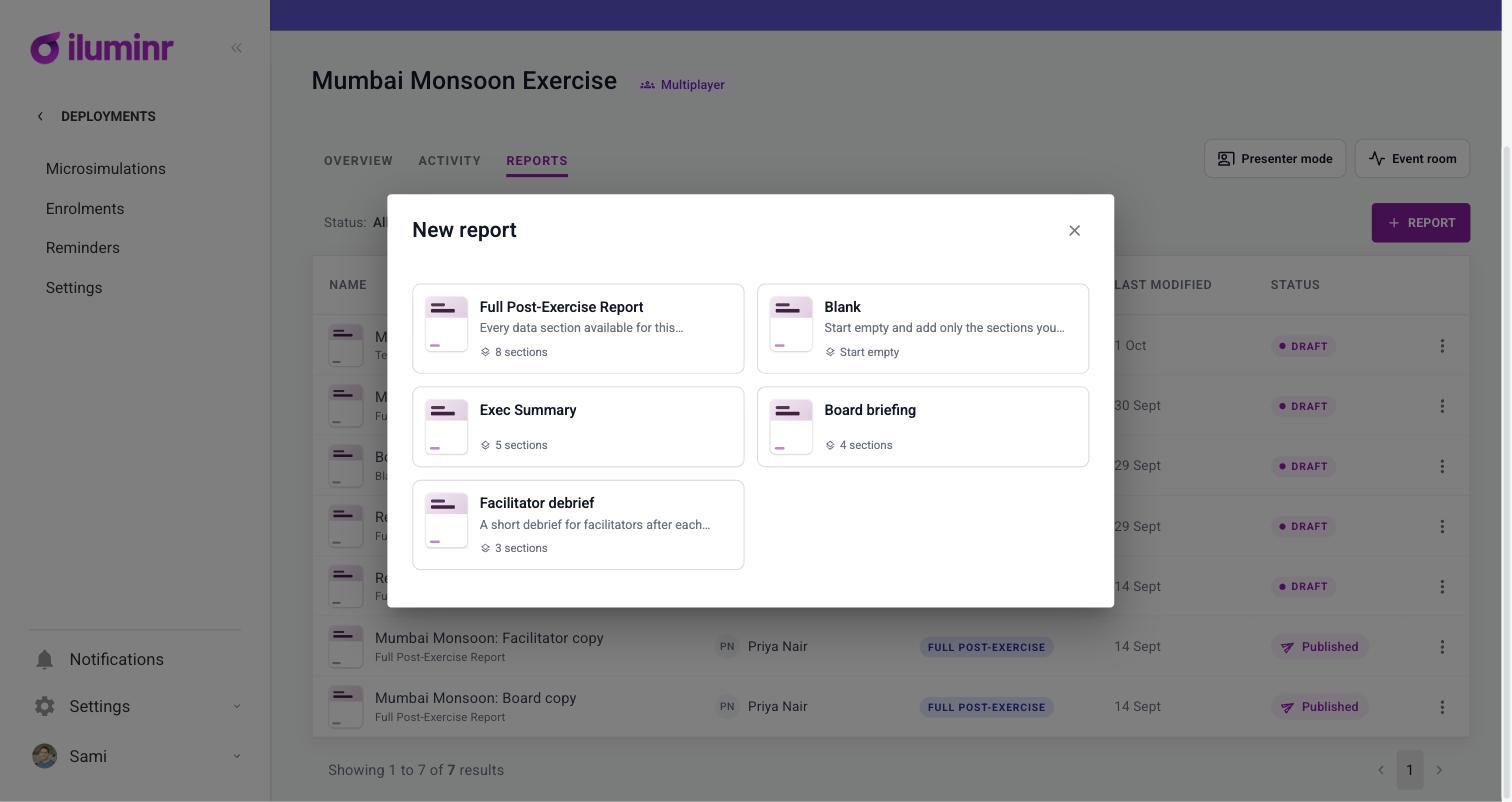
The New report dialog
The new report opens in the editor. You can change the sections afterwards.
Add a section
- Move to the line between two sections and select Add section. The new section goes where you clicked.
- In the Insert a section list, choose the section you want.
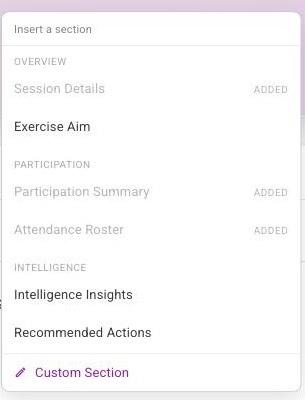
The Insert a section list
Sections are grouped:
- Overview: Session Details, Exercise Aim
- Participation: Participation Summary, Attendance Roster
- Intelligence: Intelligence Insights, Recommended Actions
- Activity: Objective Status, Activity Injects
- Custom Section: your own writing
A section that is already in the report is greyed out and marked Added. Each section can be added once.
What the data sections show
Participation Summary shows how many people completed, are in progress and have not started, with a progress bar and a completion rate.
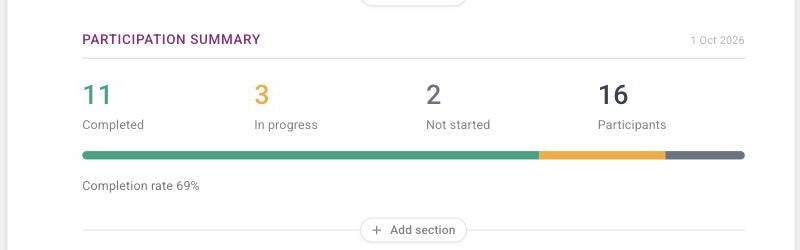
A Participation Summary section
Attendance Roster lists each participant with their role, status and completion date.
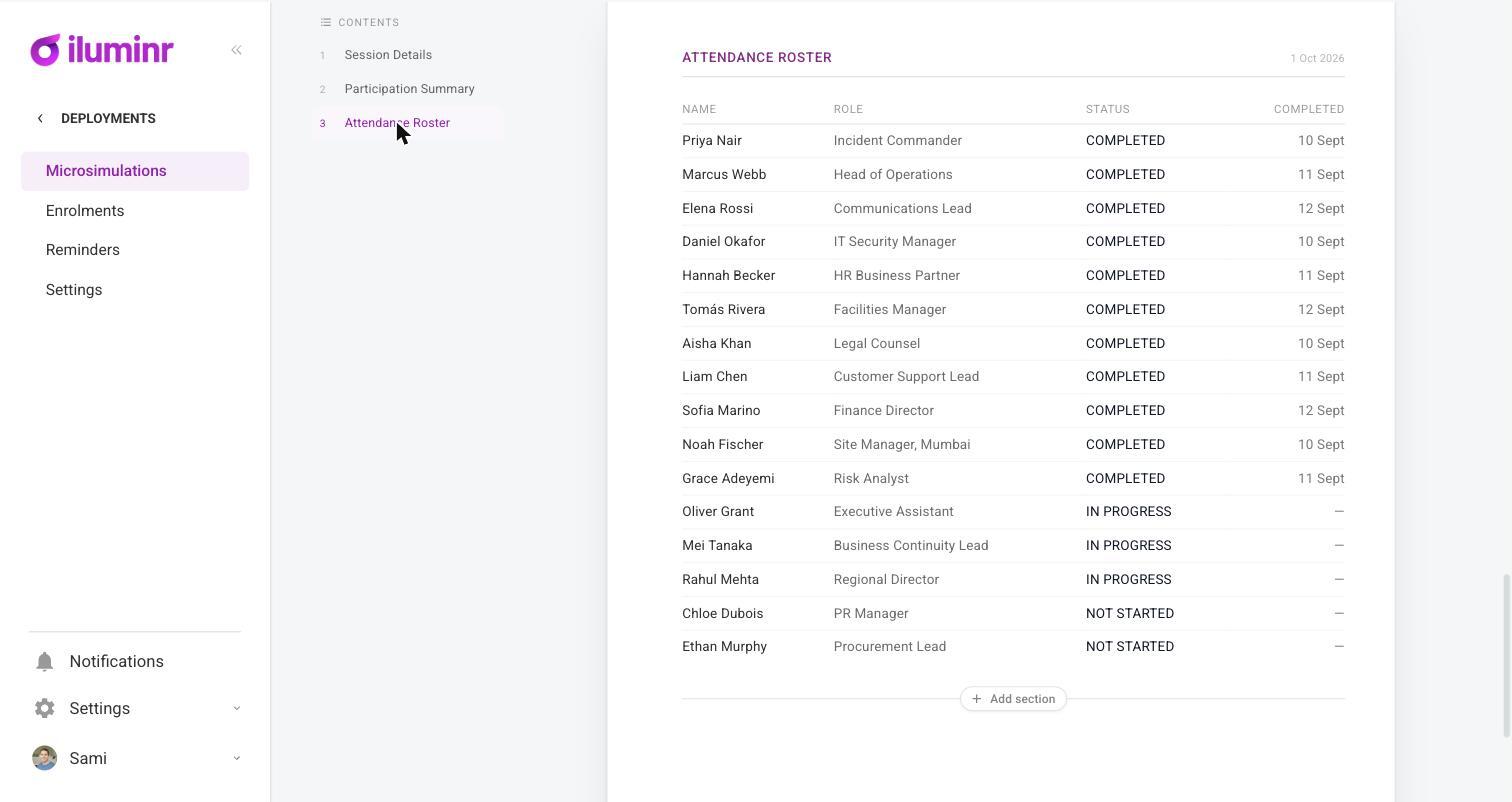
An Attendance Roster section
Every section carries the date it was generated in its top-right corner. A section with no data shows No data captured for this section yet.
Activity Injects shows the results for each inject in the session, such as pulse check answers, discussion guide questions and learning loop responses.
Remove or reorder a section
Point at a section to show its controls.
- On the left: a drag handle, Move up, Move down, Reset to source data and Remove section. Use the drag handle or the arrows to change the order.
- On the right: Edit section, Add a comment and Remove from report.
Reset to source data puts a section back to the session's original results after you have edited it. Removing a section only takes it out of this report. It doesn't delete any results.
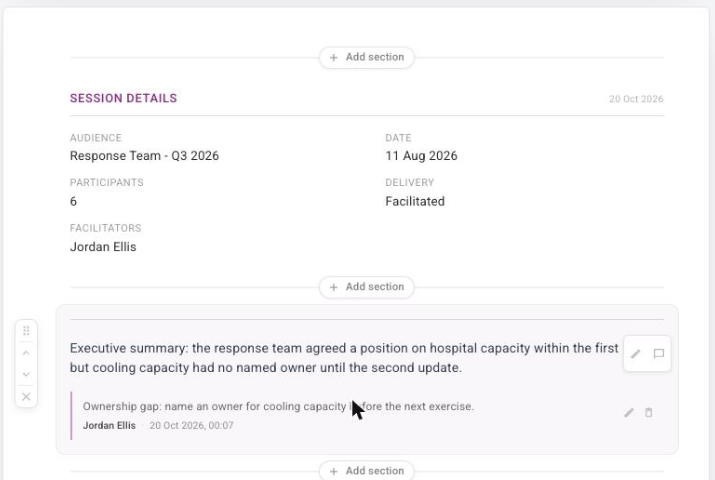
A custom section with its controls showing, and a saved comment under it
Write a custom section
Choose Custom Section in the Insert a section list and write your own text, for example an opening note for a board.
The editor has bold, italic, underline, link, bulleted list and numbered list. Select Save when you're done, or Cancel to discard your changes. To change a custom section later, point at it and select Edit section.
Add commentary to a section
Use a comment to explain a result for a particular reader.
- Point at the section and select Add a comment.
- Type your note in the Add a comment on this content box.
- Press Enter to save, or Shift + Enter for a new line. You can also select Save or Cancel.
A saved comment shows under the section with its author and the date and time. Use the pencil icon to edit it or the bin icon to delete it.
The comment belongs to this report only. It doesn't change the session's results.
Update a report with new results
If new results come in after you build a report, for example when more participants finish, the report shows which sections are out of date.
- Open the report.
- Select Update report with latest results.
The out of date sections refresh in one step.
Change how the report looks
Select Settings in the toolbar.
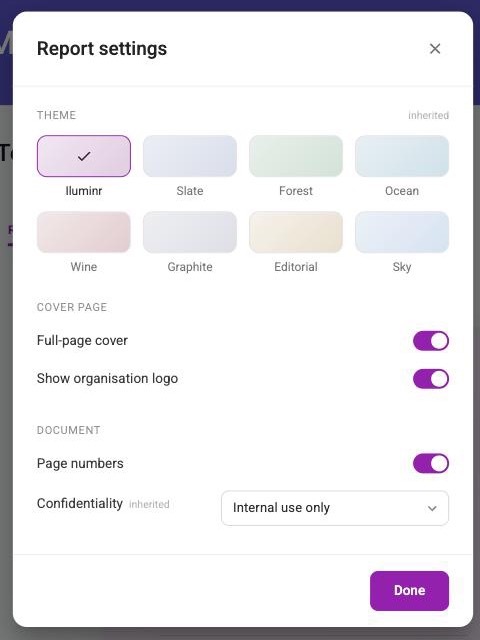
The Report settings dialog
- Theme: choose from iluminr, Slate, Forest, Ocean, Wine, Graphite, Editorial or Sky.
- Cover page: turn Full-page cover and Show organisation logo on or off.
- Document: turn Page numbers on or off, and set Confidentiality, for example Internal use only.
Some settings show inherited, which means they come from a default for your account. Select Done to save.
To change the report's title or description, select the pencil icon on the cover page and edit them in place.
Save a report as a template
Once a draft report has the sections you want, select Save as template in the toolbar, between Preview and Publish.
In the Save as a template dialog:
- Enter a Name, for example Executive readout.
- Optionally add a Description that says when someone should use this template.
- Select Save template.
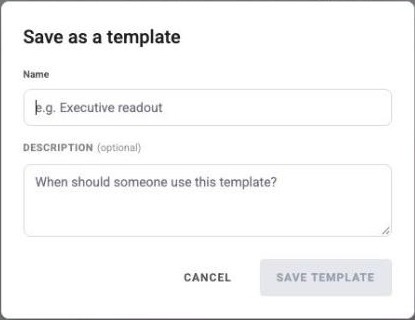
The Save as a template dialog
The template keeps your section choices, their order, your headings and custom text, and your report settings. It never keeps any exercise data. Reports built from it pull fresh data from the microsimulation.
Saved templates appear in the New report list after the built-in ones, newest first, with who saved each. They are shared across your organisation and work on any microsimulation. If a template has sections that don't apply to a microsimulation, those sections are left out and the list shows a notice.
Only the person who saved a template can rename it, change its description or delete it. Deleting is permanent. Reports already built from it aren't affected.
You can't edit a template's sections directly. To change a layout, build it in a report and save a new template.