
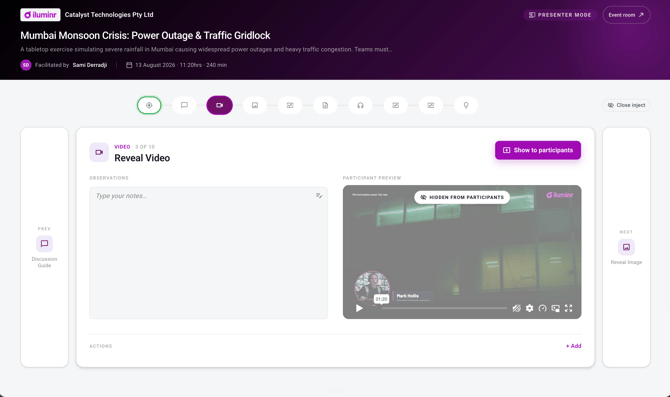
Presenter mode gives you a private second screen for running a live multiplayer simulation. You decide what the room sees and when, stage what is coming next, and read your notes — none of it visible to participants.
Without it, you drive the session from the same screen everyone is watching. Your menus, your hover states and the next inject are all on display before they are meant to land.
Before you start
- You need to be a facilitator on the deployment. Presenter mode is not available to participants.
- You need two screens — one the room watches (a projector, a shared display, or the screen you share in a meeting), and one only you see.
How do I open presenter mode?
- Open the deployment for the multiplayer simulation you are running.
- Open the event room on the screen the room will watch.
- Open presenter mode on your own device.
You now have two surfaces: the room screen, which performs, and your presenter view, which controls it.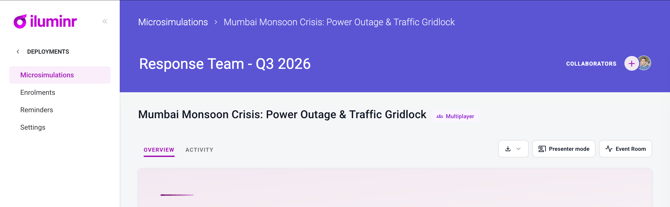
What can I do from the presenter view?
Choose what the room sees. Reveal the current inject when you are ready for it. Nothing appears on the room screen until you put it there.
Stage what comes next. Look ahead at the inject you are about to release while the room is still working on the current one — so you are reading ahead rather than reacting.
Read your notes. Your prepared notes sit in the presenter view where only you can see them.
Can I control medias from the presenter view?
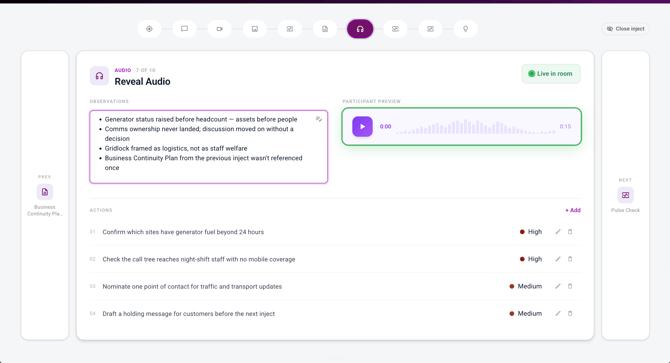
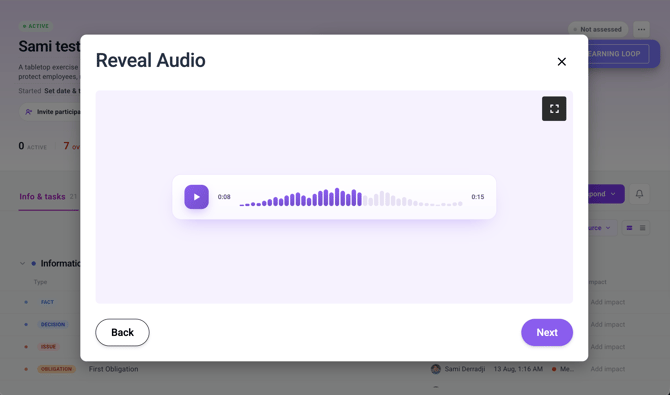
Yes. Play, pause, scrub and fullscreen all drive the room screen from where you are sitting. You never have to switch to the participant-facing window to start a clip or find a moment in it.
Your own preview stays muted and never goes fullscreen. Only the room screen performs, so you do not end up with two copies of the same audio a half-second apart.
Video is the media type this covers. Images and PDFs have nothing to play; audio behaves like video where it applies.
What do participants see while I am working?
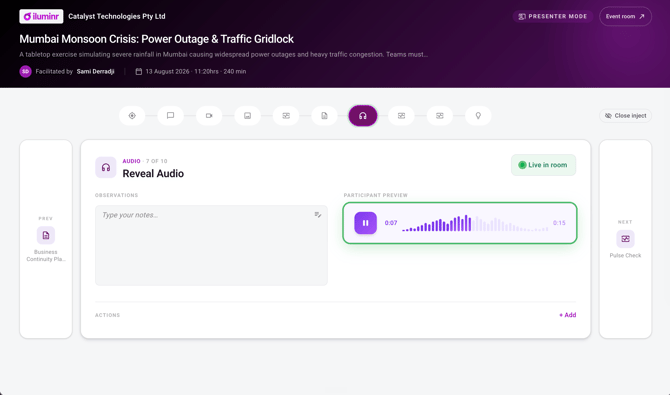
The inject you have revealed, and nothing else. Your menus, the next inject, your notes and your staging all stay on your side.
Can two facilitators use it at once?
One presenter view drives the room at a time. If you are running a session with a co-facilitator, agree who is on the controls before you start — the pattern that works well is one person driving the injects and the other capturing notes.
Note: live collaborative note-taking — several facilitators typing into the same notes field at once — is not available. Notes are captured per facilitator.
If the room screen falls behind
Both surfaces read from the same live session, so the room screen follows what you do in the presenter view. If the room screen ever looks stale, refresh it — it rejoins the session and picks up the current state.
Presenter mode and the Facilitator Console
Presenter mode is how you run the session; the Facilitator Console is where the session and its injects come from, and where you capture what happened for the report. Most facilitators use both.
Where to go next
- Run the session → How do I facilitate a Multiplayer Microsimulation?
- Ask the room a question → Get to know Pulse Check
- Build the scenario → Get to know the Multiplayer Simulation Studio