
Prefer to watch? Here's the whole thing in a few minutes
Pulse Check is an inject type available in all multiplayer and team-based simulations. You place it on the simulation timeline, and when you open it during the session a question appears for participants to answer on their phones. Responses show on screen in real time, so the group can look at them together and talk about what they see.
It is a simple way to capture feedback, insight and sentiment in the moment — while the scenario is still running, rather than afterwards.
What kinds of question can I ask?
Three formats:
- Free text — participants type a response in their own words
- Single choice — participants pick one option from a list
- Rating scale — participants rate on a scale
One Pulse Check holds one question. If you want to ask three things, add three Pulse Checks.
How do I add a Pulse Check?
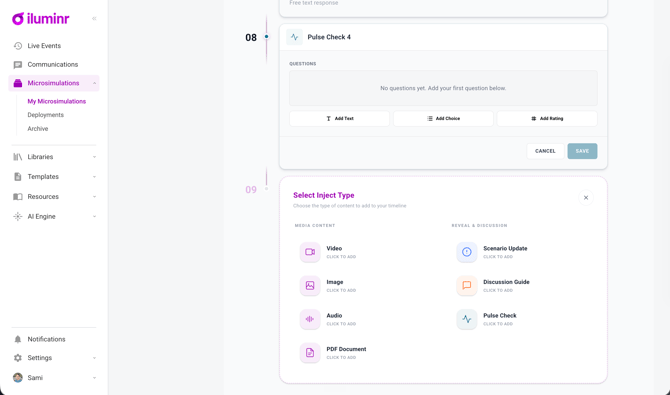
- In the Microsimulations Library, open your multiplayer simulation template.
- Go down to the simulation timeline.
- Select Add Next Inject, then choose Pulse Check.
- Pick the format — free text, single choice, or rating scale.
- Enter your question, and the response options if you have chosen single choice.
- Save.
The Pulse Check is now part of the timeline, and can be moved up or down to sit wherever you need it in the exercise. You can add as many as you like.
Use Preview to check it behaves as expected before you run the session.
How do I run one in a session?
Pulse Check works alongside the other injects. Facilitate the session as you normally would — the welcome screen, then video, media and any other inject types — and open the Pulse Check when you reach it.
In the timeline, a Pulse Check is marked with a graph icon.
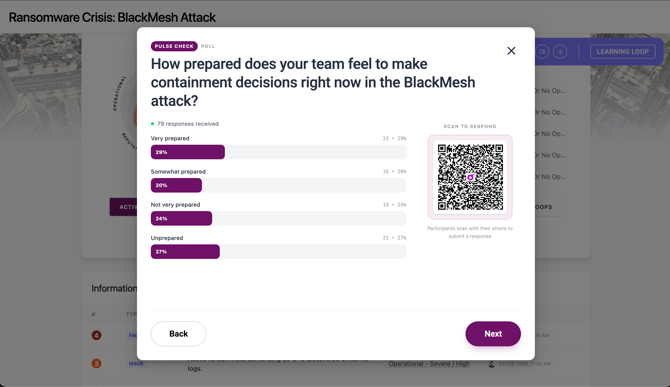
When you open it, a QR code appears on the right-hand side of the screen. Participants scan it, enter their details in the browser that opens, and submit their answer from their phone.
There is no limit on how many people can respond.
What do I see as responses come in?
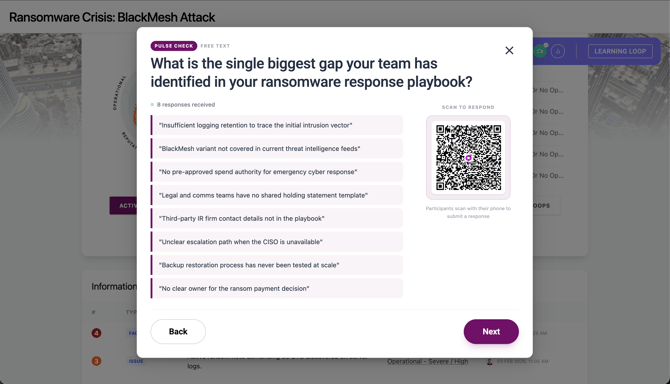
Responses appear on screen in real time as they are submitted.
For single choice, the percentages update continuously until everyone has responded, so you get an immediate read on how the group is thinking. That is usually the moment worth stopping on — the split itself is the discussion.
For free text, responses appear on screen as they arrive and stay there, so the group can work through what has been written together.
Can participants skip ahead to the next question?
No. Participants cannot move on to another Pulse Check until you open it. You control the pace of the session.
What happens at the end of the session?
Pulse Check flows into the Learning Loop. Participants do not scan another QR code — once you enable the Learning Loop, they move into it automatically on the device they are already using.
The two remain different things: a Pulse Check asks what the room thinks in the moment, during the scenario; the Learning Loop is the after-action review at the end. But for a participant it is one continuous journey, not two.
What if somebody joins late?
They join wherever the session has got to, and follow it from there.
A late joiner does not start at the beginning or work back through the questions they missed. This is a live exercise — a Pulse Check captures what the room thinks at that moment, so an answer given an hour later would not mean the same thing.
They can answer everything from the point they arrive onward, in the same way as everyone else.
Note: because of this, the response count on an earlier Pulse Check reflects the people who were in the room when you opened it — not everyone who eventually joined the session.
Where do I find the responses afterwards?
- Go to Deployments.
- Open the simulation.
- Open the main simulation dashboard.
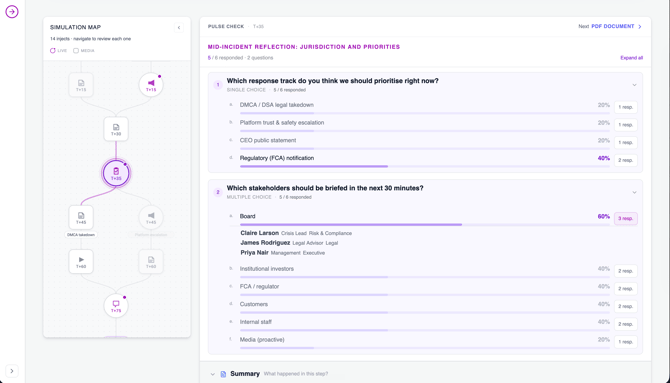
- Select the Activity tab.
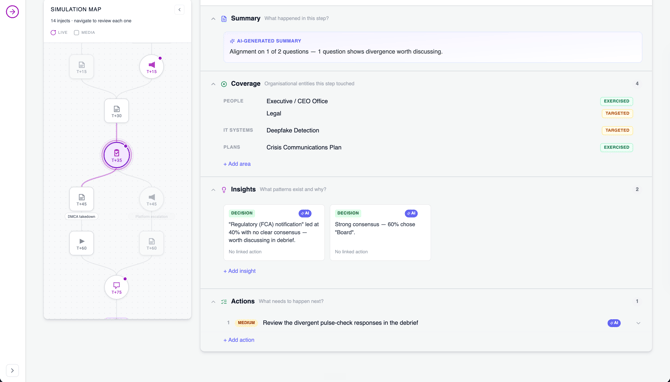
Each Pulse Check appears as an item in the simulation map. Every response captured during the session is available there for review, individual responses can be opened, and insights can be generated from what was collected.
So a debrief can walk the session in order — the media the room saw, the question you asked, and exactly how people answered it.
Where to go next
- Run the session → Get to know presenter mode
- Build the scenario → Get to know the Multiplayer Builder