---
title: Get to know Schedules (Rosters)
description: Seamlessly contact your teams via On-call rostering, duty manager rotations, support coverage based on active shifts.
---
[Skip to content](https://help.iluminr.io/knowledge/get-to-know-schedules-rosters#main-content)
English
Show submenu for translations

Open main navigation
Close main navigation
- English
Show submenu for translations
- [Log in to iluminr](https://login.catalysttech.co/)
[Log in to iluminr](https://login.catalysttech.co/)
iluminr Knowledge Base
- There are no suggestions because the search field is empty.
1. [Knowledge base](https://help.iluminr.io/knowledge?hsLang=en)
2. [iluminr for Response and Communications](https://help.iluminr.io/knowledge/iluminr-for-response-and-communications?hsLang=en)
3. [Communications](https://help.iluminr.io/knowledge/iluminr-for-response-and-communications?hsLang=en#communications)
# Get to know Schedules (Rosters)
## Seamlessly contact your teams via On-call rostering, duty manager rotations, support coverage based on active shifts.
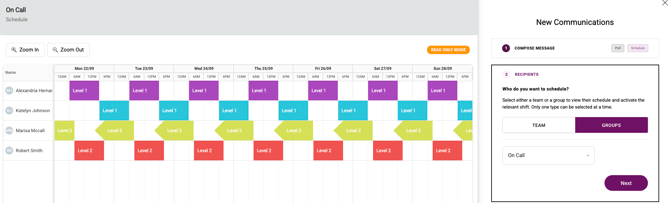
iluminr **Scheduling** offers a robust calendar interface designed for seamless management of shift coverage across diverse teams and groups. Administrators can assign shifts to specific team members, set schedules to recur automatically, and use colour coding to differentiate roles, teams, or shift types for instant visual clarity.

With these capabilities, iluminr Notifications and iluminr Flow dynamically automates processes or dispatches targeted communications, always taking into account real-time availability and allocation, ensuring that the right people are in the right place at the right time and supporting operational resilience across the organization.
### **Key features:**
- Calendar-based shift management (day, week, month views)
- Create, edit, and delete shifts with assigned team members
- Support for recurring shifts (daily, weekly, monthly)
- Assign multiple members per shift and allow overlapping coverage
- Real-time visibility of who is on duty
- Power workflows and communications using schedule data

Set it and flow. Follow this detailed guide to configure [iluminr automation triggers](https://help.iluminr.io/knowledge/iluminr-flow?hsLang=en)
### **Centralized Schedule View:**
See shift coverage across all your teams and groups in one place.
The **Scheduling** tab in the **People Library** puts all your schedules in one view. No jumping between teams — every group, every shift, all at once.
Each shift shows its start and end time, not just the date, for example **07:30 → 00:30**.
Clicking the expand arrow on a team row — member rows appear with individual shift blocks. Large teams load progressively as you scroll down.
### This view vs. opening a team directly
### Export a schedule to Excel
You can export the whole schedule, or a date range, as an Excel (.xlsx) file to share or keep offline.
1. Open the schedule you want to export: the **Scheduling** tab in the People Library, or the schedule tab on a team or group.
2. Select **Export**. The **Export schedule** panel opens. From the People Library it covers every team and group with a schedule.
3. Under **DATE RANGE**, choose **This week**, **This month**, **Next 30 days**, **Entire schedule** or **Custom…**. The dates and number of days show below, for example "1 Oct 2026 – 31 Oct 2026 · 31 days".
4. Select **EXPORT .XLSX**.
The file opens in Excel or any spreadsheet app. If someone only needs to see the schedule, send them the export. They don't need an iluminr login to read it.
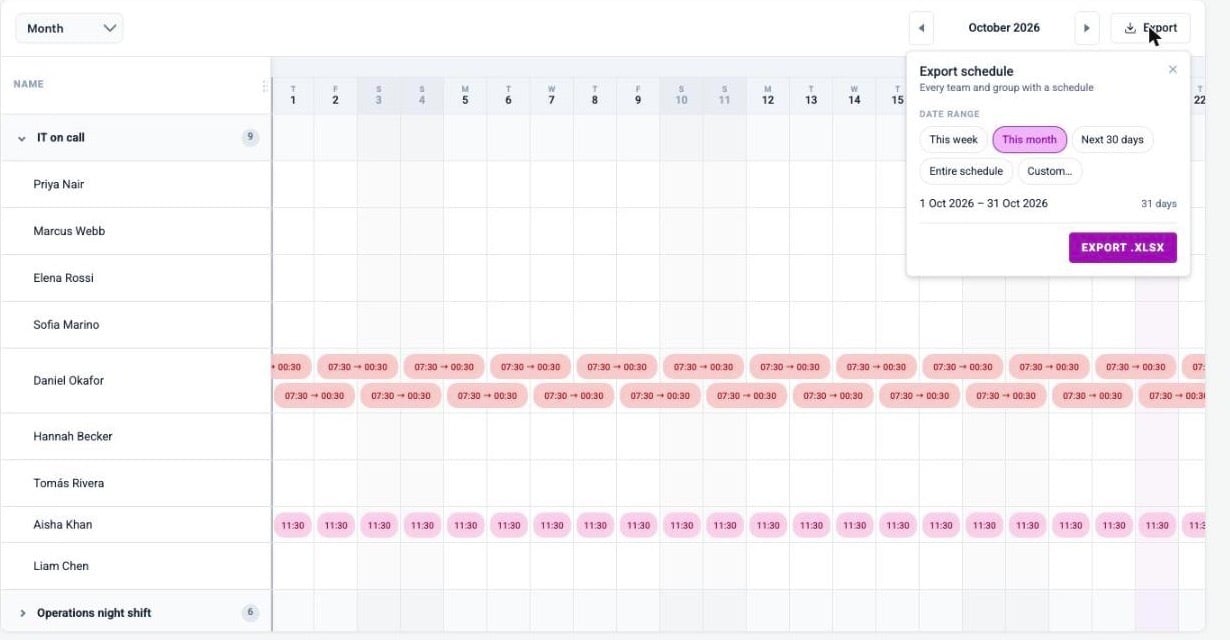
*The Scheduling tab in month view with the Export schedule panel open: the date range chips and Export .xlsx.*
| I want to… | Go here |
| --- | --- |
| See shift coverage across all teams at once | People Library → Scheduling |
| Check who's on duty right now, org-wide | People Library → Scheduling (Day view) |
| Create or edit a shift for a specific team | People Library → Teams → select team → Scheduling |
| Set up a schedule for a group | People Library → Groups → select group → Scheduling |
The **Scheduling** tab is for visibility. To create or edit shifts, open the team or group directly.
**If someone leaves a team or contact group.** When you remove a member from a team or a contact group, they are also removed from that team's or group's shifts. A shift left with no members is deleted. Shifts that belong to other teams or groups are not changed, and the person stops receiving notifications that are sent by schedule for the shifts they were removed from.
---
### Related Articles:
- [Get to know Communications](https://help.iluminr.io/knowledge/sending-communications?hsLang=en)
- [Get to know the Communications Dashboard](https://help.iluminr.io/knowledge/get-to-know-the-communications-dashboard?hsLang=en)
- [Get to know Call Hunt](https://help.iluminr.io/knowledge/get-to-know-call-hunt?hsLang=en)
- [How do I create a new message and notify contacts?](https://help.iluminr.io/knowledge/how-do-i-create-a-new-message-and-notify-contacts?hsLang=en)
**Need more assistance?** [Submit a support ticket](https://iluminr.io/resource-centre/support-ticket/?hsLang=en)
- [iluminr for Response and Communications](https://help.iluminr.io/knowledge/iluminr-for-response-and-communications?hsLang=en#main-content)
- [Get Started with Using iluminr](https://help.iluminr.io/knowledge/iluminr-for-response-and-communications?hsLang=en#get-started-with-using-iluminr)
- [Communications](https://help.iluminr.io/knowledge/iluminr-for-response-and-communications?hsLang=en#communications)
- [Critical Event Management](https://help.iluminr.io/knowledge/iluminr-for-response-and-communications?hsLang=en#critical-event-management)
- [Training Options](https://help.iluminr.io/knowledge/iluminr-for-response-and-communications?hsLang=en#training-options)
- [iluminr for Admin Users](https://help.iluminr.io/knowledge/iluminr-for-admin-users?hsLang=en#main-content)
- [Get started with managing iluminr](https://help.iluminr.io/knowledge/iluminr-for-admin-users?hsLang=en#get-started-with-managing-iluminr)
- [Integrations](https://help.iluminr.io/knowledge/iluminr-for-admin-users?hsLang=en#integrations)
- [People and Permission Management](https://help.iluminr.io/knowledge/iluminr-for-admin-users?hsLang=en#people-and-permission-management)
- [Event Room Management](https://help.iluminr.io/knowledge/iluminr-for-admin-users?hsLang=en#event-room-management)
- [Alert Automations](https://help.iluminr.io/knowledge/iluminr-for-admin-users?hsLang=en#alert-automations)
- [Troubleshooting](https://help.iluminr.io/knowledge/troubleshooting?hsLang=en)
- [Manage Microsimulations](https://help.iluminr.io/knowledge/manage-microsimulations?hsLang=en#main-content)
- [START HERE](https://help.iluminr.io/knowledge/manage-microsimulations?hsLang=en#start-here)
- [Multiplayer Content Management](https://help.iluminr.io/knowledge/manage-microsimulations?hsLang=en#multiplayer-content-management)
- [Single Player Content Management](https://help.iluminr.io/knowledge/manage-microsimulations?hsLang=en#single-player-content-management)
- [Learnspace for Single Player Microsimulations](https://help.iluminr.io/knowledge/manage-microsimulations?hsLang=en#learnspace-for-single-player-microsimulations)
- [Deploying Microsimulations](https://help.iluminr.io/knowledge/manage-microsimulations?hsLang=en#deploying-microsimulations)
- [Microsimulation Insights (reporting)](https://help.iluminr.io/knowledge/manage-microsimulations?hsLang=en#microsimulation-insights-reporting)
- [Participate in Microsimulations](https://help.iluminr.io/knowledge/participate-in-microsimulations?hsLang=en#main-content)
- [Participate in Single Player Microsimulations](https://help.iluminr.io/knowledge/participate-in-microsimulations?hsLang=en#participate-in-single-player-microsimulations)
- [Participate in Multiplayer Microsimulations](https://help.iluminr.io/knowledge/participate-in-microsimulations?hsLang=en#participate-in-multiplayer-microsimulations)
[](https://iluminr.io?hsLang=en)
[iluminr](https://iluminr.io/?hsLang=en) - [Submit a Support Ticket](https://iluminr.io/resource-centre/support-ticket/?hsLang=en) - [Terms of Use](https://iluminr.io/terms-of-use/?hsLang=en) - [Privacy Policy](https://iluminr.io/privacy-policy/?hsLang=en)
Copyright © 2025, iluminr