
This is an admin only feature.
Experience bite-sized, scenario-driven exercises built for speed, autonomy, and proof of resilience - powered by iluminr’s Capability Intelligence.
- How can I access the Single Player Microsimulation Studio?
- How can I create new content?
- What content screens are available?
- What media screens are available?
- How can I insert a screen at a specific position?
- How can I utilise the configure tab?
This is an Admin User ONLY capability.
How can I access the Single Player Microsimulation studio?
- Login to your iluminr account.
- In the navigation menu, expand Microsimulations.
- Select My Microsimulations.
- Select Single Player BETA
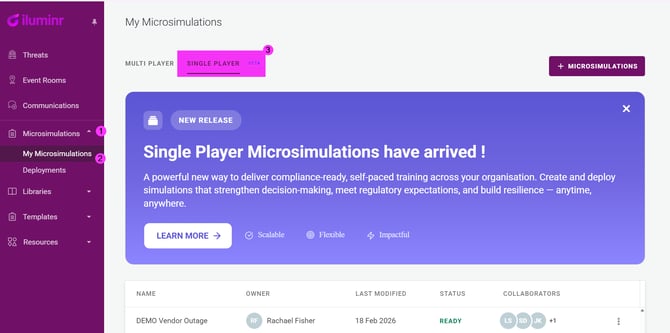
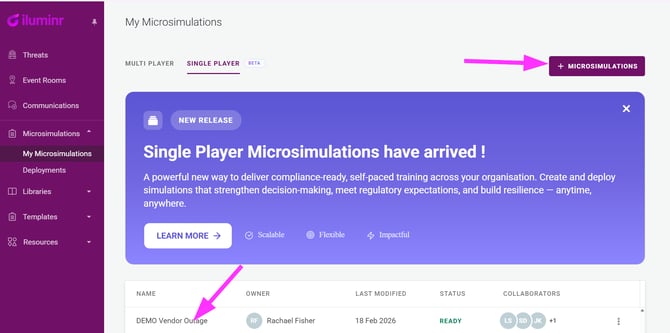
- To create a new Single Player Microsimulation click the + MICROSIMULATIONS button.
- To access an existing Single Player Microsimulation click on the NAME.
How can I create new content?
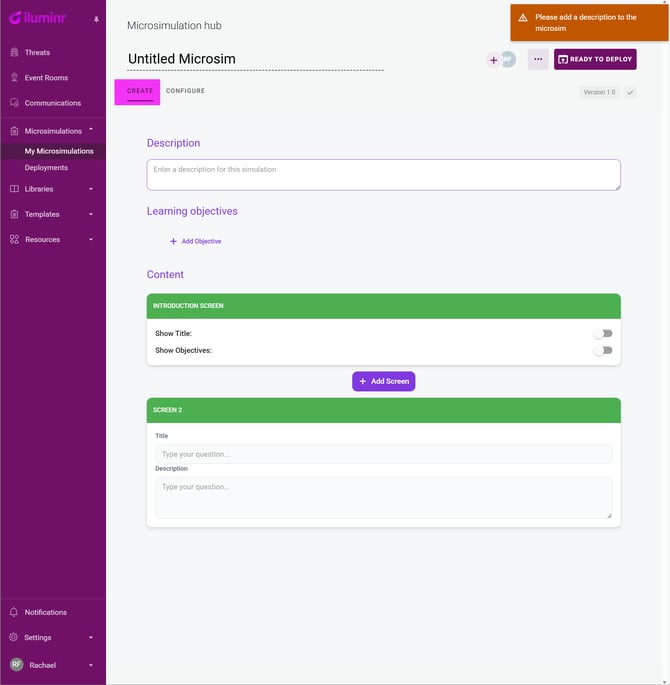
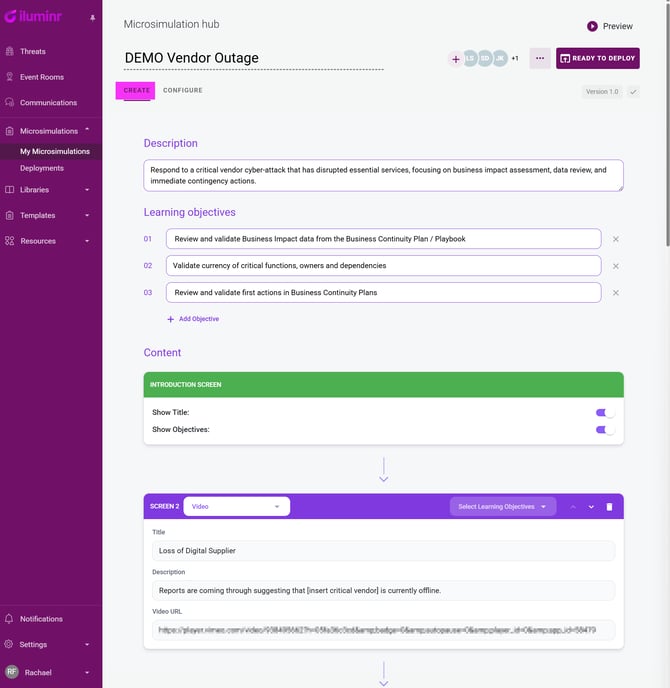
Use the CREATE section to build the:
- Title
- Description
- Learning Objectives
- Content
- Introduction Screen
- + Add Screen using the available screen types.
- Final Screen
Example of creating a NEW Single Player Microsimulation:
Example of managing an existing Single Player Microsimulation:
What content screens are available?
The content is developed using the screen page types:
- Text
- Single Choice (with optional Decision Point toggle)
- Multiple Choice
- Slider
- Video
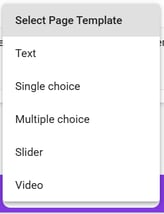
Each screen can be:
-
linked to the relevant Learning Objectives
-
reordered using the 🔼 or 🔽 icons
- deleted using the rubbish bin icon
What media screens are available?
Use the Media screen to add a single piece of media to your microsimulation — an image, audio file, PDF, or video — without wrapping it in a question.
| Media type | Accepted formats | Max file size |
|---|---|---|
| Image | JPG, JPEG, PNG, GIF, WEBP | 10 MB |
| Audio | MP3, WAV, M4A, AAC, OGG, FLAC | 20 MB |
| 15 MB | ||
| Video | Paste a video URL | — |
To add a Media screen, click + Add Screen and select Media from the screen type list. Choose the media type, then upload your file or paste a URL.
Media screen template in the studio with the media type selector visible (Image / Audio / PDF / Video options).
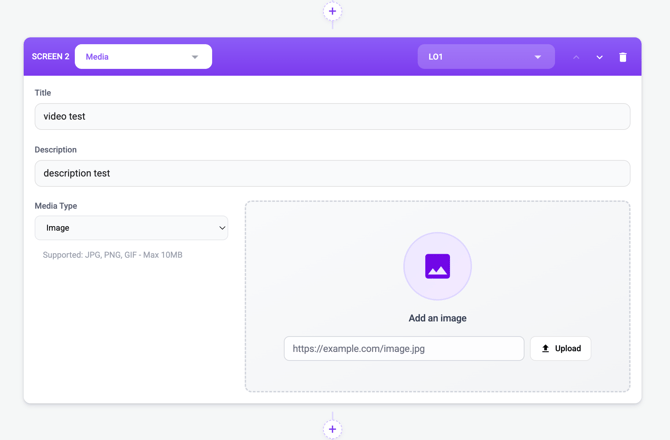
In the Learnspace, the Media screen shows appropriate controls for each type — play/pause for audio and video, scroll for PDFs, and zoom for images.
How can I insert a screen at a specific position?
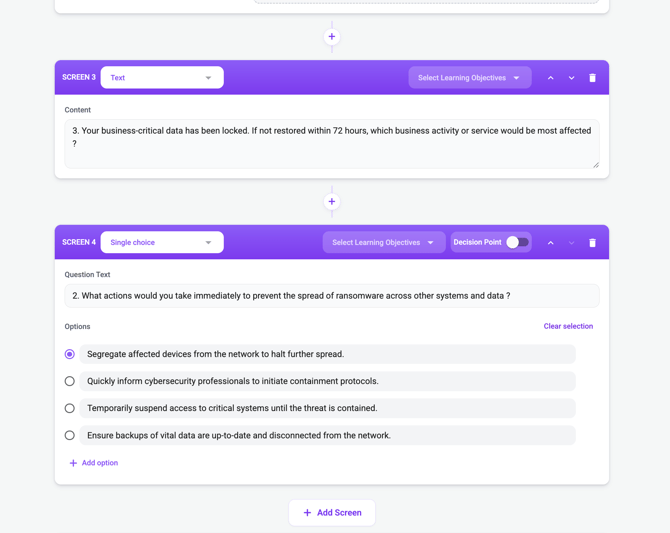
You can add a screen anywhere in your microsimulation, not just at the end.
Click the + button that appears between existing screens in the screen list to insert a new screen at that position. All screen types are available when inserting.
Screen list in the builder showing the + insert button between two existing screens.
How can I utilise the configure tab?
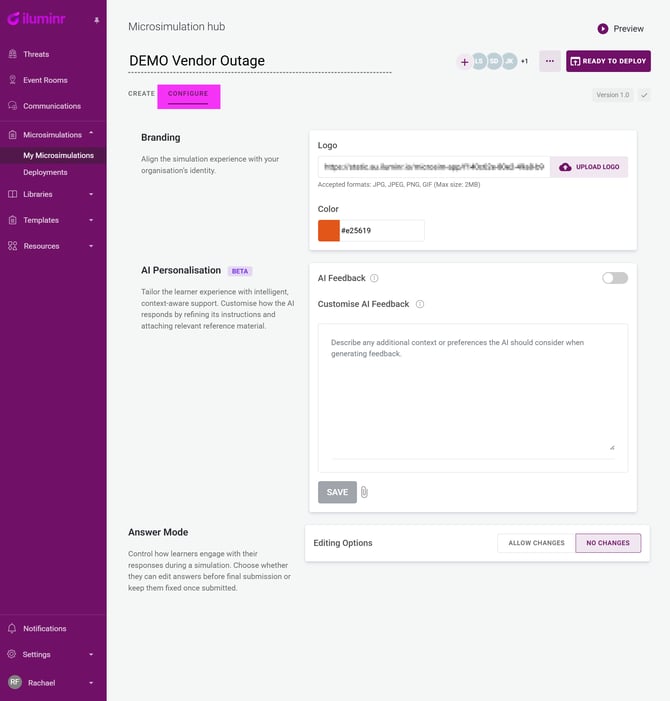
Use the CONFIGURE section to customise the Single Player Microsimulation for your organisation.
Branding
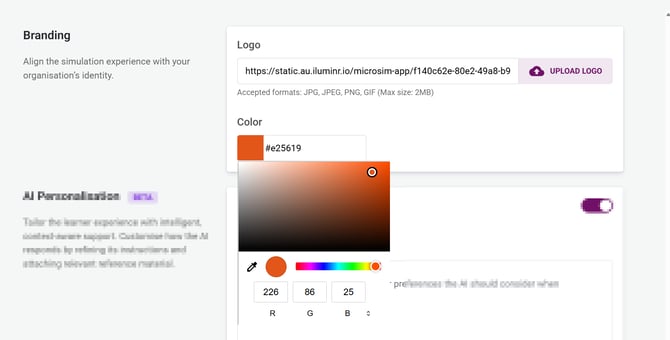
Align the simulation experience with your organisation’s identity by uploading your company logo (Accepted formats: JPG, JPEG, PNG, GIF (Max size: 2MB)) and selecting your company colour with HEX, RGB or the eye dropper.
AI Personalisation BETA
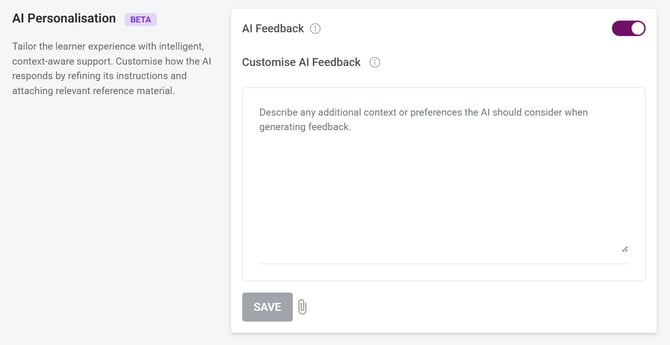
Tailor the learner experience with intelligent, context-aware support. Customise how the AI responds by refining its instructions and attaching relevant reference material. By default the AI Personalisaion is toggled OFF until an Admin User toggles this capability ON.
Please note this feature is currently in BETA. Contact your Customer Success Manager for a copy of our latest AI Context fact sheet.
Use the AI Feedback toggle to enable or disable real-time AI-generated feedback for Learners based on their response during the simulation.
Add context files to the simulation, these files will be available to the AI during the simulation for providing relevant feedback. The AI Personalisation currently supports Excel files only with a maximum of 1 file allowed. The number of files and file types will be expanded in future iterations.
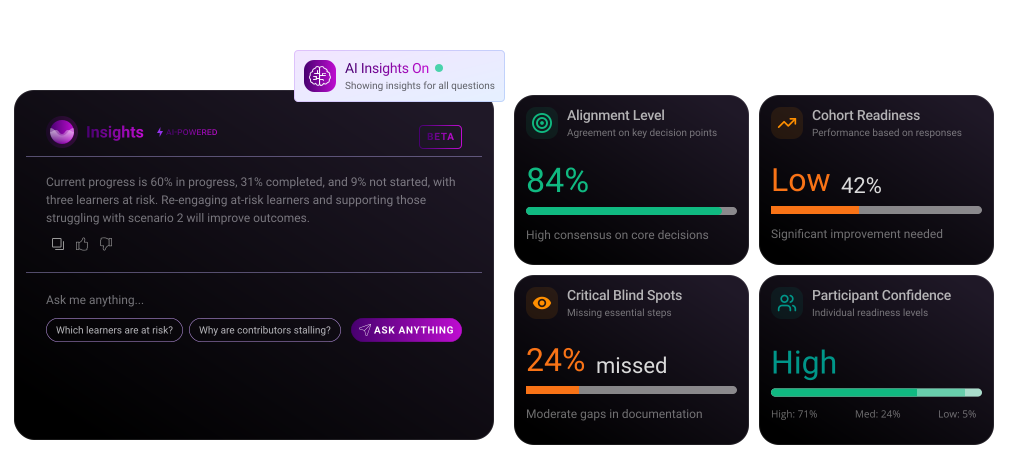
Example of AI Insights available to Admin Users when AI Insights are toggled on.
Answer Mode
Control how learners engage with their responses during a simulation. Choose whether they can edit answers before final submission or keep them fixed once submitted.

Related Articles:
Need more assistance? Submit a support ticket