---
title: Get to know the new live Event Room workspace
description: "A tour of the new iluminr Event Room: the information and task board, impact timeline, playbooks, comms and resources, and how to switch it on."
---
[Skip to content](https://help.iluminr.io/knowledge/get-to-know-the-new-live-event-room-workspace#main-content)
English
Show submenu for translations

Open main navigation
Close main navigation
- English
Show submenu for translations
- [Log in to iluminr](https://login.catalysttech.co/)
[Log in to iluminr](https://login.catalysttech.co/)
iluminr Knowledge Base
- There are no suggestions because the search field is empty.
1. [Knowledge base](https://help.iluminr.io/knowledge?hsLang=en)
2. [iluminr for Admin Users](https://help.iluminr.io/knowledge/iluminr-for-admin-users?hsLang=en)
3. [Event Room Management](https://help.iluminr.io/knowledge/iluminr-for-admin-users?hsLang=en#event-room-management)
# Get to know the new live Event Room workspace
## Everything you need to know about the new Event Room workspace, as an Admin User, Facilitator or responder.
*How to work information, tasks, playbooks, comms and impact from one screen during a live event, as an Admin User, Facilitator or responder.*
*Prefer to watch? Here's the whole tour in a few minutes*
The Event Room has been rebuilt. It carries considerably more depth beneath a simpler surface — the same response, with far less hunting for where something lives.
### How do I turn it on?
The event dashboard is unchanged, with impact cards showing the severity and escalation level of each event. Opening an event still takes you to the **classic** Event Room by default, so teams already trained on it carry on exactly as before.
When you are ready to move, select **Try new workspace**. You can switch back to the classic view at any time — including part-way through an event, since it is the same underlying event either way.
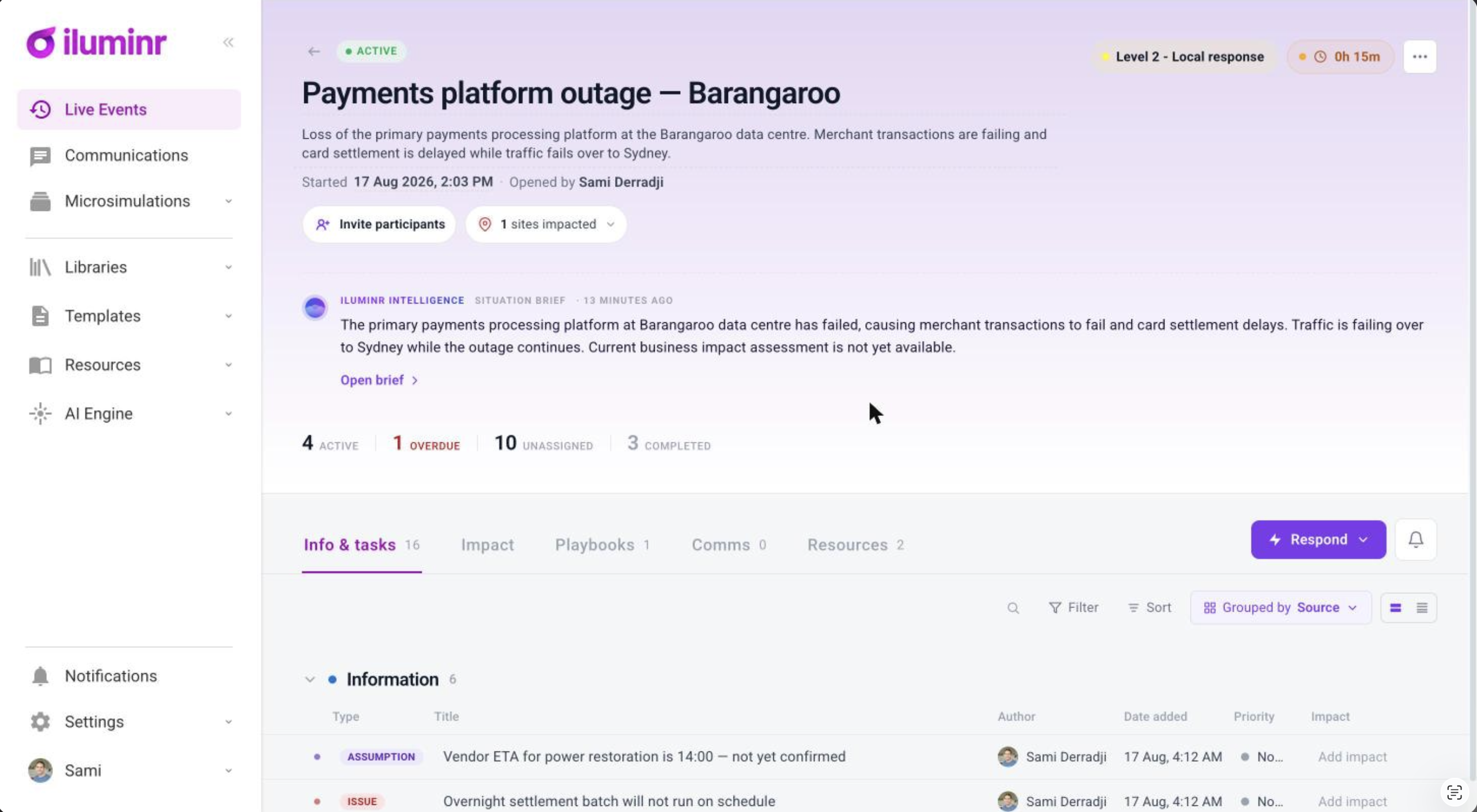
### What is in the header?
The event heading and description are **editable directly** — no separate settings screen.
Alongside them the header tells you:
- When the event was opened, and who opened it
- The current impact assessment and escalation level
- How long the event has been active
**Inviting people.** Participants are invited through team activation, sent by email, SMS or whichever channels your organisation has configured. Once an activation goes out, the activated participants appear in the event room and can be notified directly, with recipients populated for you.
**Impacted sites** are added and managed from here too, and an event can carry several locations.
**Response actions** sit in the header for fast access: activate teams, activate playbooks, and notify contacts. You can also toggle notifications on so assignees are alerted whenever a new task is assigned to them.
### What is iluminr Intelligence?
An AI-generated summary of the event, sitting near the top of the room. It reads what has already been captured — the information and task boards, playbooks and impact assessments — and writes a quick overview of where the event stands. It also surfaces what is **active, overdue, unassigned and completed** at a glance.
iluminr Intelligence is only available where **AI insights are enabled for your organisation**. If you do not see it, speak to your Customer Success contact.
The same AI layer produces audience-specific situation briefs — see *AI in the event room*.

### The information and task board
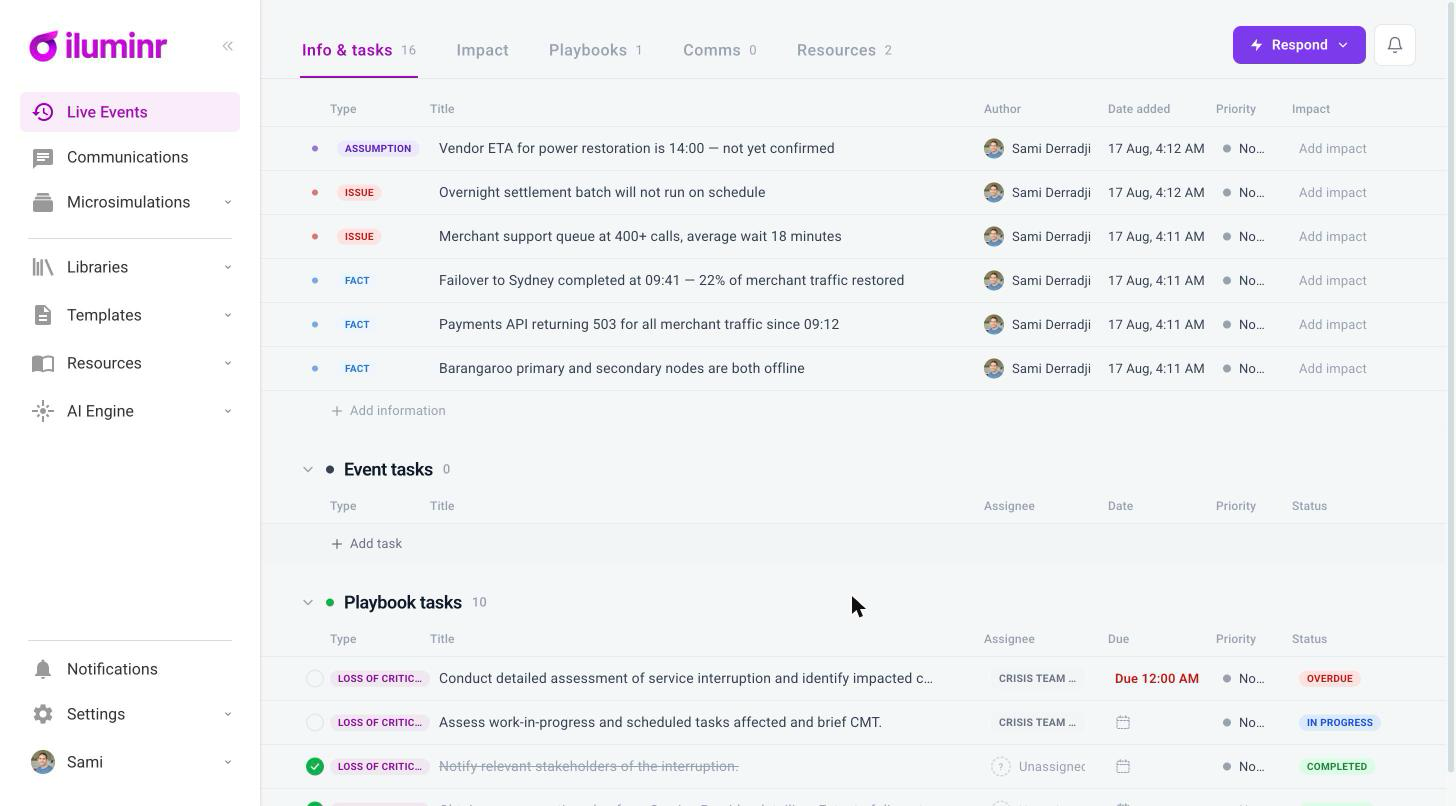
The biggest upgrade. Information board items sit together in one clean, streamlined view.
For each item you can:
- **Link** items to each other
- **Add notes**
- **Assign an impact**
- **Classify** the entry as a **fact, assumption, issue, decision or obligation**
Tasks complete quickly — either in a single action, or by updating the progress status directly. **Active playbook tasks appear here too**, and can be assigned, reprioritised and completed the same way, so you are not moving between boards to work one response.
### Finding things: filtering, sorting and grouping
**Filter** on several attributes at once.
**Sort** by attributes such as due date, title or status.
**Group** the list whichever way suits how your team is working:
- **By source** — information board, event, task, playbook
- **By status**
- **By assignee**
- **Or leave it flat** as a single unsorted list
### Impact assessment
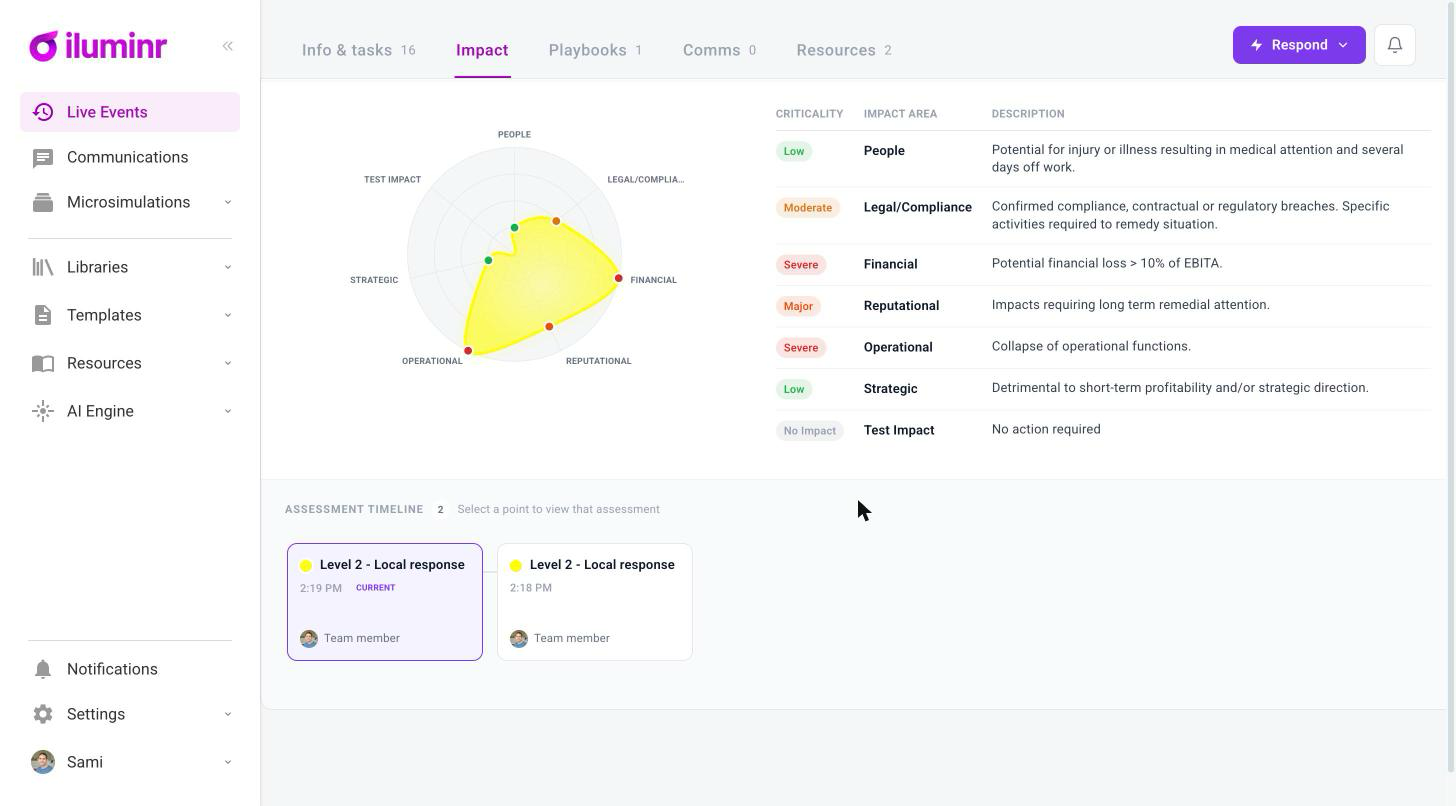
Impact now sits in its own **timeline**, showing every assessment completed over the course of the event.
Reassessing takes a moment. Each update adds a new entry to the timeline and refreshes the current rating shown at the top of the event room — so the header always reads true, and the history of how the event developed is preserved rather than overwritten.
### Playbooks
Playbooks have a dedicated tab, where outstanding playbook items can be accessed, activated, assigned and filtered.
**More than one playbook can run at once** — a communications playbook alongside a crisis management playbook, for instance — and both are managed side by side.
### Comms
Communications appear directly in the event room, with a summary of anything sent for that event and a link through to the full detail in the communications section.
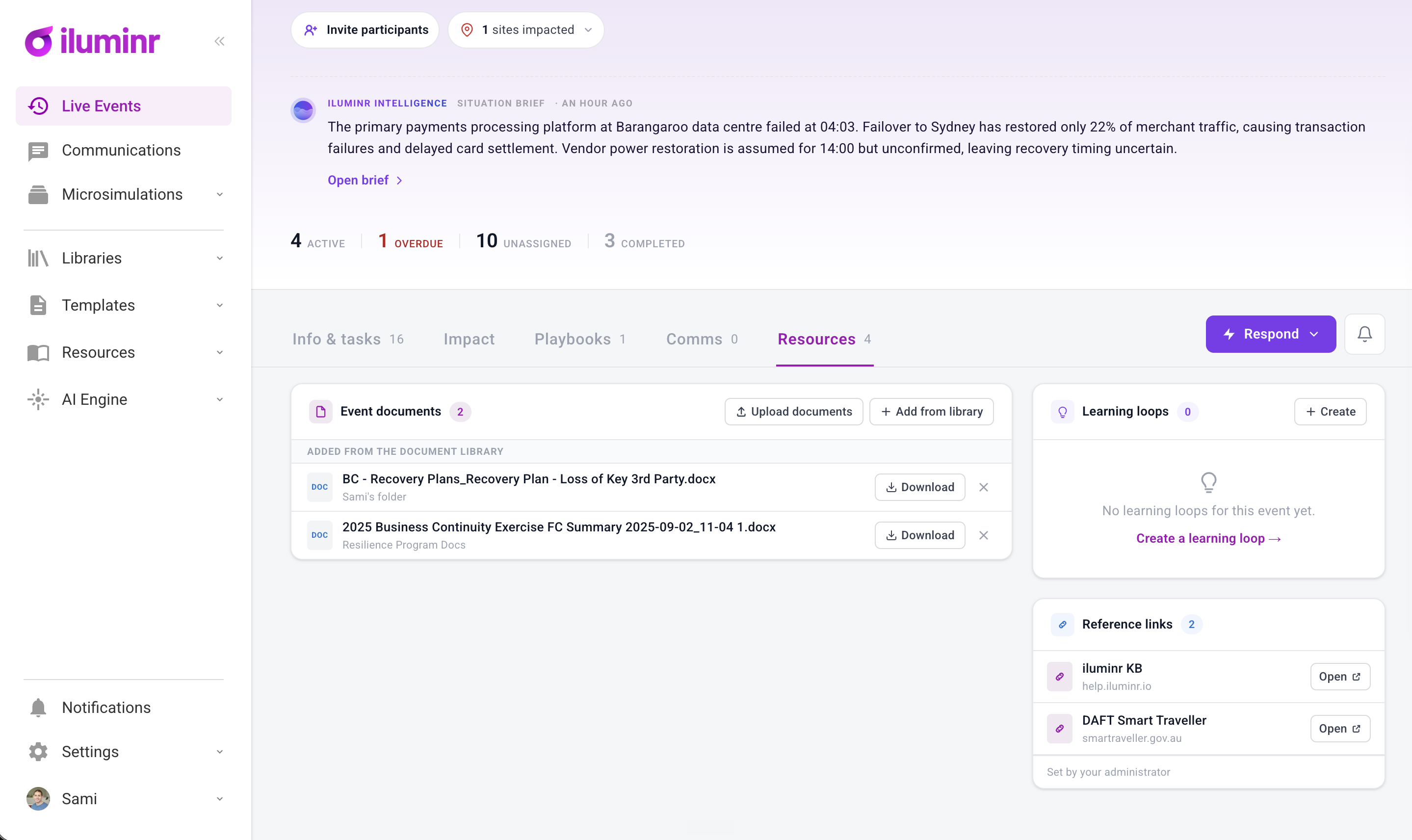
### Resources
Resources replaces the previous document section. Files can be **uploaded specifically for the event**, or **pulled directly from the central library**, with existing permission controls carried through.
**Learning loops** can be created or activated from the event room as well, using an existing template or a new one — useful for an after-action review. Links and references remain available as before.
### Sharing, privacy and export
**Share a dashboard** with anyone using the existing share function. The link can be set to **expire**.
**Mark an event private** to restrict access to invited participants only.
**Export the event room** as a fully branded report in Word, PDF, Excel or CSV — see *How do I export an event room report?*
### Do I have to move?
No. The classic Event Room remains available at any time, and switching is reversible. Nothing about your event data depends on which view you use.
### Where to go next
- Produce the record → *How do I export an event room report?*
- Let AI write it up → *AI in the event room*
- [iluminr for Response and Communications](https://help.iluminr.io/knowledge/iluminr-for-response-and-communications?hsLang=en#main-content)
- [Get Started with Using iluminr](https://help.iluminr.io/knowledge/iluminr-for-response-and-communications?hsLang=en#get-started-with-using-iluminr)
- [Communications](https://help.iluminr.io/knowledge/iluminr-for-response-and-communications?hsLang=en#communications)
- [Critical Event Management](https://help.iluminr.io/knowledge/iluminr-for-response-and-communications?hsLang=en#critical-event-management)
- [Training Options](https://help.iluminr.io/knowledge/iluminr-for-response-and-communications?hsLang=en#training-options)
- [iluminr for Admin Users](https://help.iluminr.io/knowledge/iluminr-for-admin-users?hsLang=en#main-content)
- [Get started with managing iluminr](https://help.iluminr.io/knowledge/iluminr-for-admin-users?hsLang=en#get-started-with-managing-iluminr)
- [Integrations](https://help.iluminr.io/knowledge/iluminr-for-admin-users?hsLang=en#integrations)
- [People and Permission Management](https://help.iluminr.io/knowledge/iluminr-for-admin-users?hsLang=en#people-and-permission-management)
- [Event Room Management](https://help.iluminr.io/knowledge/iluminr-for-admin-users?hsLang=en#event-room-management)
- [Alert Automations](https://help.iluminr.io/knowledge/iluminr-for-admin-users?hsLang=en#alert-automations)
- [Troubleshooting](https://help.iluminr.io/knowledge/troubleshooting?hsLang=en)
- [Manage Microsimulations](https://help.iluminr.io/knowledge/manage-microsimulations?hsLang=en#main-content)
- [START HERE](https://help.iluminr.io/knowledge/manage-microsimulations?hsLang=en#start-here)
- [Multiplayer Content Management](https://help.iluminr.io/knowledge/manage-microsimulations?hsLang=en#multiplayer-content-management)
- [Single Player Content Management](https://help.iluminr.io/knowledge/manage-microsimulations?hsLang=en#single-player-content-management)
- [Learnspace for Single Player Microsimulations](https://help.iluminr.io/knowledge/manage-microsimulations?hsLang=en#learnspace-for-single-player-microsimulations)
- [Deploying Microsimulations](https://help.iluminr.io/knowledge/manage-microsimulations?hsLang=en#deploying-microsimulations)
- [Microsimulation Insights (reporting)](https://help.iluminr.io/knowledge/manage-microsimulations?hsLang=en#microsimulation-insights-reporting)
- [Participate in Microsimulations](https://help.iluminr.io/knowledge/participate-in-microsimulations?hsLang=en#main-content)
- [Participate in Single Player Microsimulations](https://help.iluminr.io/knowledge/participate-in-microsimulations?hsLang=en#participate-in-single-player-microsimulations)
- [Participate in Multiplayer Microsimulations](https://help.iluminr.io/knowledge/participate-in-microsimulations?hsLang=en#participate-in-multiplayer-microsimulations)
[](https://iluminr.io?hsLang=en)
[iluminr](https://iluminr.io/?hsLang=en) - [Submit a Support Ticket](https://iluminr.io/resource-centre/support-ticket/?hsLang=en) - [Terms of Use](https://iluminr.io/terms-of-use/?hsLang=en) - [Privacy Policy](https://iluminr.io/privacy-policy/?hsLang=en)
Copyright © 2025, iluminr