
People now has its own place in the left menu, where Resources used to be. It brings contacts, users and admins together in one list, and lets you sort out most sign-in problems yourself: require or reset MFA, send a password reset, or give a contact access to the platform.
The old Settings › Users page still works for now while you get used to the new page.
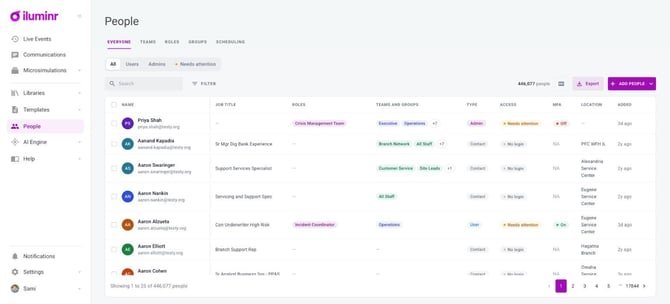
The People page with the Everyone tab open.
What's on the People page
| Tab | What you'll find |
| Everyone | Everyone in your organisation in one list: contacts, users and admins. |
| Teams, Roles, Groups, Scheduling | Moved here from the People Library. They work the same way as before. |
Read the list
| Column | What it tells you |
| Type | Contact: receives messages and joins exercises, but can't sign in. User: can sign in; their roles decide what they can see and do. Admin: can sign in and manage the platform. |
| Access | Active: they've accepted their invite. Invite pending: they haven't accepted it yet. No login: a contact without platform access. |
| MFA | On or Off for users and admins. NA for contacts. |
Find people quickly
Use the quick views above the list: All, Users, Admins and Needs attention. Needs attention shows users who have MFA turned off or haven't accepted their invite, so you know who to follow up with.
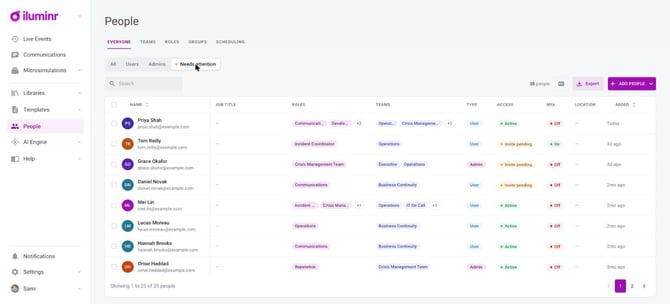
The Needs attention quick view.
Search by name or email. To narrow the list further, select Filter, then Add filter and pick Groups, Roles, Job title, Location, Company or Hire date. Quick views and filters work together.
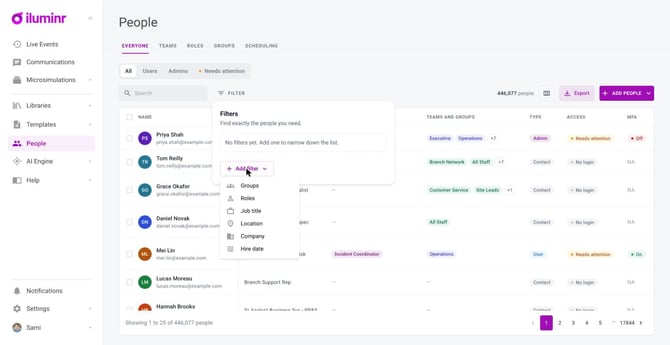
Select Filter, then Add filter, to narrow the list.
To choose which columns you see, select the columns icon next to Export. You can add Last login, Phone, Company and Source, or select Reset to default to go back.
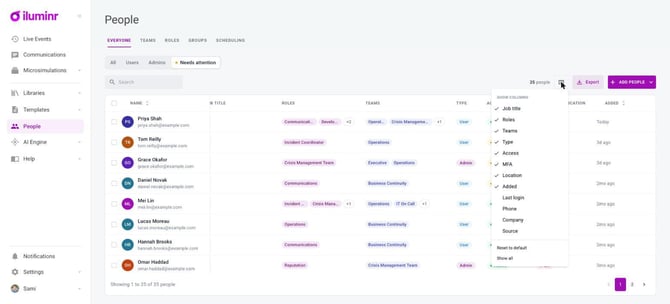
Choose your columns.
Open a record
Select a name, or select ⋯ at the end of a row and then Open record. The record shows their contact details, details, groups and Platform access: roles, teams, admin level, access, MFA and last login. Select Edit to update their contact details.
Sort out sign-in problems yourself
Use the ⋯ menu at the end of a row, or the ⋯ menu next to Platform access on a record. You only see the actions that apply to that account, and each one asks you to confirm first.
| Action | When to use it |
| Require MFA | The user has MFA off and you want them to set it up. |
| Reset MFA | The user has MFA on but has lost or replaced their device. They set it up again the next time they sign in. |
| Send password reset | The user can't sign in with their password. They get an email with a link to set a new one. |
| Edit access (on the record) | Change their roles, teams or admin level. |
| Deactivate account | They should no longer be able to sign in. You can't deactivate your own account. |
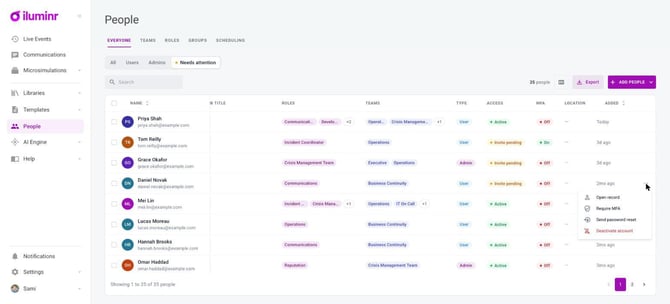
Account actions from the ⋯ menu on a row.
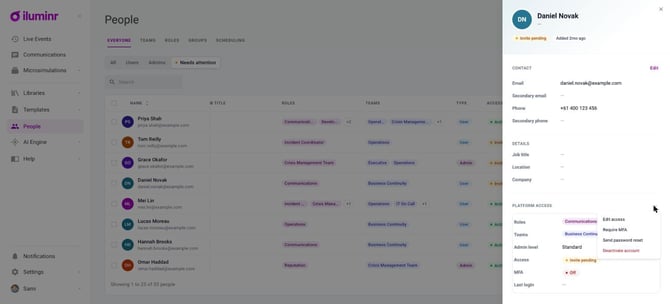
The Platform access section on a record, with its ⋯ menu open.
Give a contact platform access
Open the contact's record. Under Platform access you'll see No platform access. Select Give access, then choose their roles and teams.
Add people
Select Add people, then choose:
- Add manually: add one at a time, with or without platform access.
- Import from spreadsheet: add contacts from a .csv, .xlsx or .xls file.
When you add manually, fill in first name, last name, email, phone and at least one group. Leave Platform access off to add a contact who receives messages and joins exercises. Turn it on to add a user who can sign in, choose their roles and teams, then select Add & invite. They'll get an invite email.
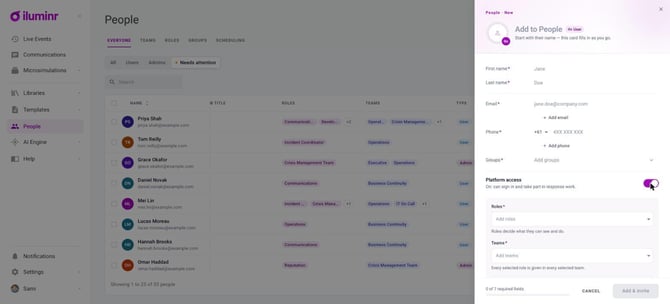
Adding someone manually with Platform access turned on.
Export people
Select Export to download everyone as a CSV you can open in Excel or Google Sheets. Exports of more than 1,000 people take a few minutes to prepare, so we'll email you a download link.
Good to know
- You need to be an admin to add people or change platform access.
- Settings › Users still works during the move to the new People page.