
This is an admin only feature.
Tags describe what a microsimulation covers and who it's for. You add them in the Discovery & Filtering section of the Configure step. It's the same in the single player and multiplayer builders.
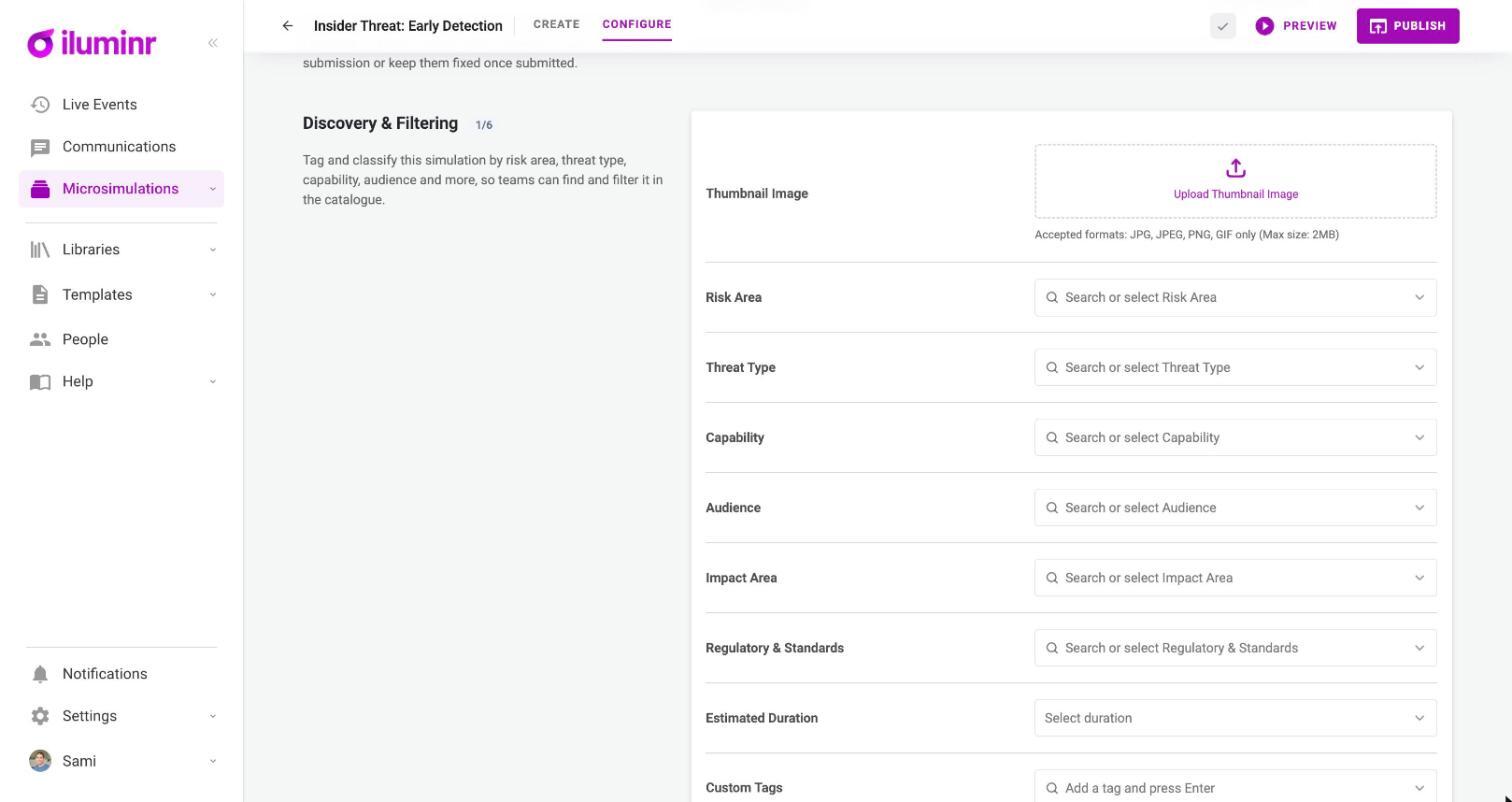
Discovery & Filtering, with the counter next to the heading.
Find the tags
- In the navigation menu, expand Microsimulations and select My Microsimulations.
- Open a microsimulation, or create a new one.
- Go to the Configure step and scroll to Discovery & Filtering.
Your choices save automatically.
The fields
Thumbnail Image comes first, then these 11 fields, always in this order:
| # | Field | What it describes | Options |
|---|---|---|---|
| 1 | Risk Area | The broad area of risk | 7: AI Risk, Cyber & Digital Risk, Operational Risk, Physical Security, Emergency Management, Workforce Disruption, Regulatory & Compliance |
| 2 | Threat Type | The specific threat in the scenario | 37, grouped by risk area (for example Ransomware, Natural Disaster, Industrial Action) |
| 3 | Capability | What the microsimulation builds | 21, for example Decision-Making, Crisis Leadership, Escalation & Activation |
| 4 | Audience | Who it's written for | 19, for example Executive Leadership, Crisis Management Team, All Staff |
| 5 | Impact Area | What the incident affects | 15, for example Financial, Operational, Reputational, Safety |
| 6 | Regulatory & Standards | Regulations and standards it helps with | 59, grouped by jurisdiction (Global Standards, Australia, New Zealand, European Union, United Kingdom, United States, Canada, Asia, Middle East) |
| 7 | Estimated Duration | How long it takes | Pick one: Under 10 min, 10–20 min, 21–30 min, 31–45 min, 46–60 min, 61–90 min, 90+ min, Multi-session |
| 8 | Custom Tags | Anything else you want to search on | Your own words |
| 9 | Region | Where the scenario is set | Grouped: Asia Pacific (Asia Pacific, Australia, New Zealand), Europe (Europe, United Kingdom), North America (North America, United States), Africa (South Africa) |
| 10 | Language | The languages it's available in | 11: English - US, English - UK, English - AU, English - NZ, English - ZA, Mandarin, French, French - Canadian, Portuguese - Brazilian, Spanish, Italian |
| 11 | Industry | The sectors it suits | 10, grouped by sector (for example Financial Services, Insurance, Healthcare, Energy & Utilities) |
Open a field to see its full list.
Good to know:Capability used to be called Focus, and Regulatory & Standards used to be called Regulatory Alignment. Only the names changed. The values you picked are still there.
Choose values
- Select a field to open its list, then select as many values as apply. Estimated Duration takes one value only.
- Long lists are grouped under headings. Type to search: the search covers the headings too, so typing "Australia" in Regulatory & Standards shows every Australian regulation.
- If you need a value that isn't on the list, type it and press Enter.
- When you pick more than two values, the field shows the first one and +N more.
Good to know: Filters match values exactly. A microsimulation tagged only United Kingdom won't appear when someone filters by Europe. If the broad region applies too, tag both.
Custom Tags
Type a tag and press Enter to add it. As you type, iluminr suggests custom tags already used on other microsimulations in your organisation. Picking a suggestion keeps everyone on the same spelling, which matters because filters match exactly.
Fields set by your admin
If your organisation has its own fields for microsimulations, they show under Set by your admin, after the 11 fields. If an option you need is missing, ask your admin.
What the counter means
The counter next to Discovery & Filtering (for example 3/6) shows how many of these six are filled in:
- Thumbnail Image
- Risk Area
- Threat Type
- Audience
- Region
- Estimated Duration
None of them is required. You can publish a microsimulation and add it to a deployment with the counter at 0/6.
Your existing tags
Nothing you've already tagged is lost.
- Some values have new names: Executive is now Executive Leadership, CPS 230 is now APRA CPS 230, and the Capability value Regulatory Alignment is now Regulatory Notification & Reporting. Estimated durations move to the new options, for example 15–30 min becomes 21–30 min.
- Three values are no longer on the lists: Individual and Group (Audience) and Reputational (Threat Type). If a microsimulation already has them, they stay on it, but you can't filter by them any more.
Use tags to find microsimulations
In My Microsimulations, select Filter to narrow the library by any of the 11 fields. See Get to know the Microsimulation library.
Frequently asked questions
Do I have to fill in every field? No. Every field is optional, and none of them stops you publishing.
Can I add a value that isn't on the list? Yes. Type it and press Enter. Use the listed values where you can, so filters find your microsimulation alongside others.
Related articles
- Get to know the Microsimulation library
- Get to know the Single Player Microsimulation studio
- Get to know the Multiplayer Simulation Studio
Need more assistance? Submit a support ticket