
Sometimes there is nothing to filter. Every email from that address matters, and writing a condition to say so is extra work that can only go wrong later. You can now switch conditions off and let the sender address be the entire rule.
How to switch it off
- Open your automation from Libraries → Automation.
- In the trigger, make sure Sender Email Address holds the address you want to listen to. This is now required, and we will get to why in a moment.
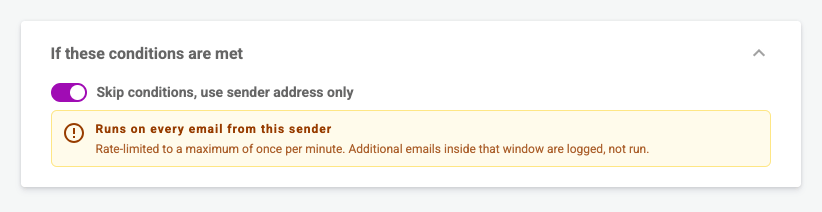
- On the Conditions card, turn conditions off.
- Publish.
From then on, every email that arrives at your trigger address from that sender starts the workflow. Nothing is checked beyond who sent it.
You have to name a sender
With conditions switched off, the sender address is the only thing standing between your workflow and every email that lands at the trigger address. So we will not let you publish without one. Try it and you get:
A valid sender email is required to publish a workflow without conditions.
Fix the trigger, publish again.
One run a minute
A workflow with no conditions runs at most once per minute. If ten emails arrive from that sender inside the same minute, the workflow runs once. The other nine are recorded and skipped.
The limit exists because of what happens during a real incident. An upstream system having a bad morning can send a hundred emails in a few minutes, and without a guard that is a hundred workflow runs, a hundred SMS to the same on-call group. The cap is fixed at one per minute and is not configurable.
Skipped emails are not lost. They appear in the activity log with a status of Rate limited, so you can see exactly what came in and what was held back. Filter the log by that status if you want to check whether you are hitting the ceiling.

Your conditions are not deleted
If the workflow already had conditions and you switch them off, they stay where they are. They are ignored while conditions are off, and they come back the moment you switch conditions on again. Nothing is thrown away.
The run log looks different too. A run with no conditions has no condition-evaluation step in it, because there was nothing to evaluate.
When to use it, and when not to
Good fit:
- A single monitoring or ITSM system that only ever emails you when something is genuinely wrong
- A paging address where you would rather over-notify than miss one
- A sender that already does the filtering upstream, so a second layer in iluminr does not add extra benefit
Think twice:
- A shared mailbox that receives ordinary mail as well as alerts. Everything triggers, including the reply-all thread.
- Any sender that can burst. The rate limit protects your contacts from a hundred notifications, but it also means you may only hear about the first of a hundred distinct problems.
- Anywhere the useful signal is inside the message. A body condition costs you thirty seconds and gives you precision.
Where to go next
- Build the rest of the workflow → iluminr Automations
- Check what a workflow actually did → Get to know Schedules and Activity Logs
Need more assistance? Submit a support ticket