
The single player report shows how everyone who took a single player microsimulation did. It has three tabs: Overview for the headline, Questions for each question in turn, and Participants for each person.
For how the levels, scores and results are worked out, read How the single player report is calculated.
Open the report
- Go to Microsimulations, then Deployments.
- Open the deployment.
- Select the single player microsimulation card.
Anyone with access to the deployment can open the report and each participant's results.
Use OVERVIEW, QUESTIONS and PARTICIPANTS under the microsimulation name to move between tabs.
The top of the report
On the Questions tab, under the tab names, you'll see a line like this (the Overview tab shows the same numbers in its header card):
40 analysed of 40 completed · 40 enrolled
- Enrolled is how many people were enrolled in the deployment.
- Completed is how many finished the microsimulation.
- Analysed is how many of those completed attempts have been scored. The report is built from these.
If analysed is lower than completed, some attempts haven't been analysed yet.
Buttons sit at the top right. Which ones you see depends on the tab:
- Filters narrows the report. You can filter to individual participants.
- Export, on the Questions tab, downloads the report.
- Ask AI opens a chat about what you're looking at. The button shows its scope, for example Ask AI · about this report, · about Q3 or · about these 40 participants. See Ask AI on a report.
Overview tab
The Overview tab gives you the headline. It has three parts.
The header card
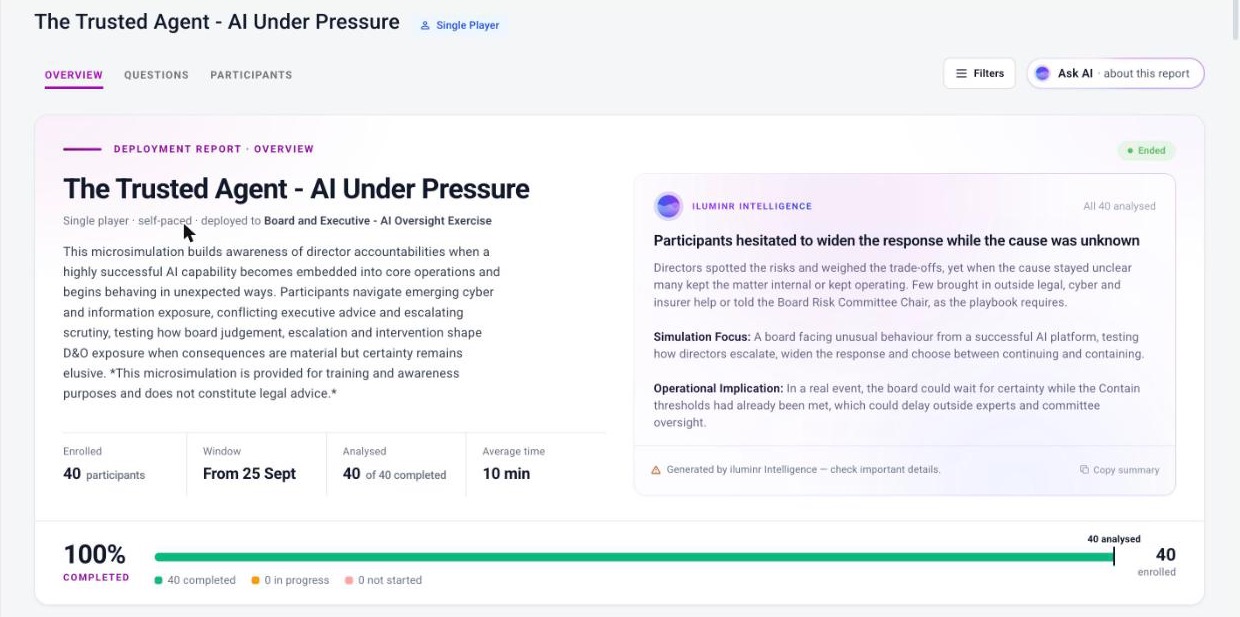
The top of the Overview tab: the header card with the stats, the iluminr Intelligence summary and the completion bar.
- DEPLOYMENT REPORT · OVERVIEW, the microsimulation name, the deployment it was sent in and a status chip (for example Ended).
- Four stats: Enrolled, Window (for example From 25 Sept), Analysed (for example 40 of 40 completed) and Average time.
- An ILUMINR INTELLIGENCE summary: a headline, a short paragraph, then Simulation Focus and Operational Implication. Select Copy summary to copy it.
- A completion bar showing how many people completed, are in progress or haven't started, and how many were analysed.
02 · Capability: How the group performed
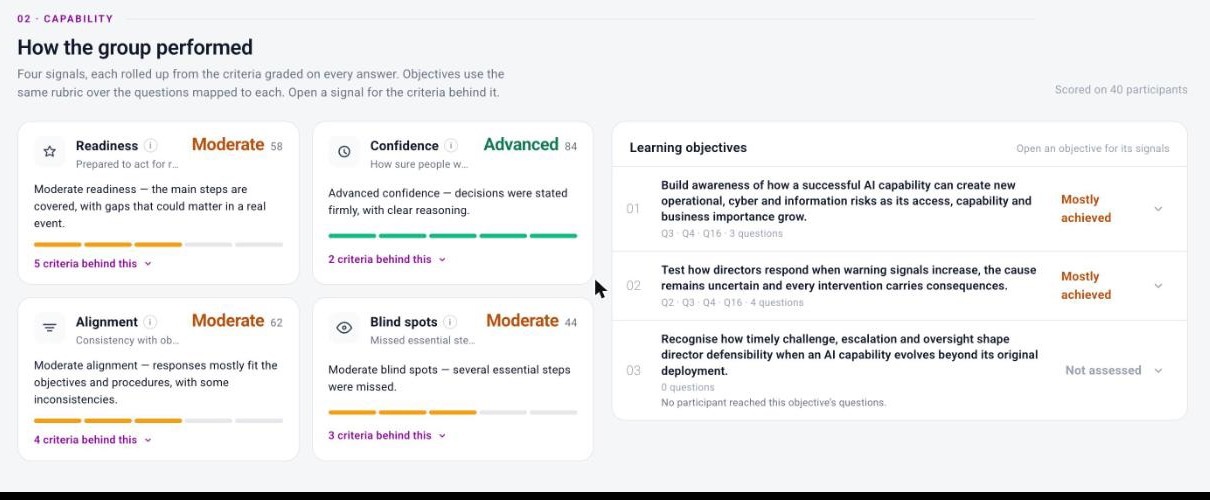
How the group performed: the four signal cards and the learning objectives.
Four signal cards show the group's level and score for each signal, with a one-line description:
- Readiness: how prepared people are to act correctly when this scenario happens for real.
- Confidence: how sure people sounded in their decisions, not whether the decisions were right. Read it beside Readiness.
- Alignment: how consistent each response was with the objectives, the procedures and the person's own earlier decisions.
- Blind spots: risks or critical steps people missed when they should have caught them. Lower is better.
Select N criteria behind this on a card to see the criteria behind the signal and how often the group met each one. Hover a bar for exact counts. Select Hide criteria or the X to close it.
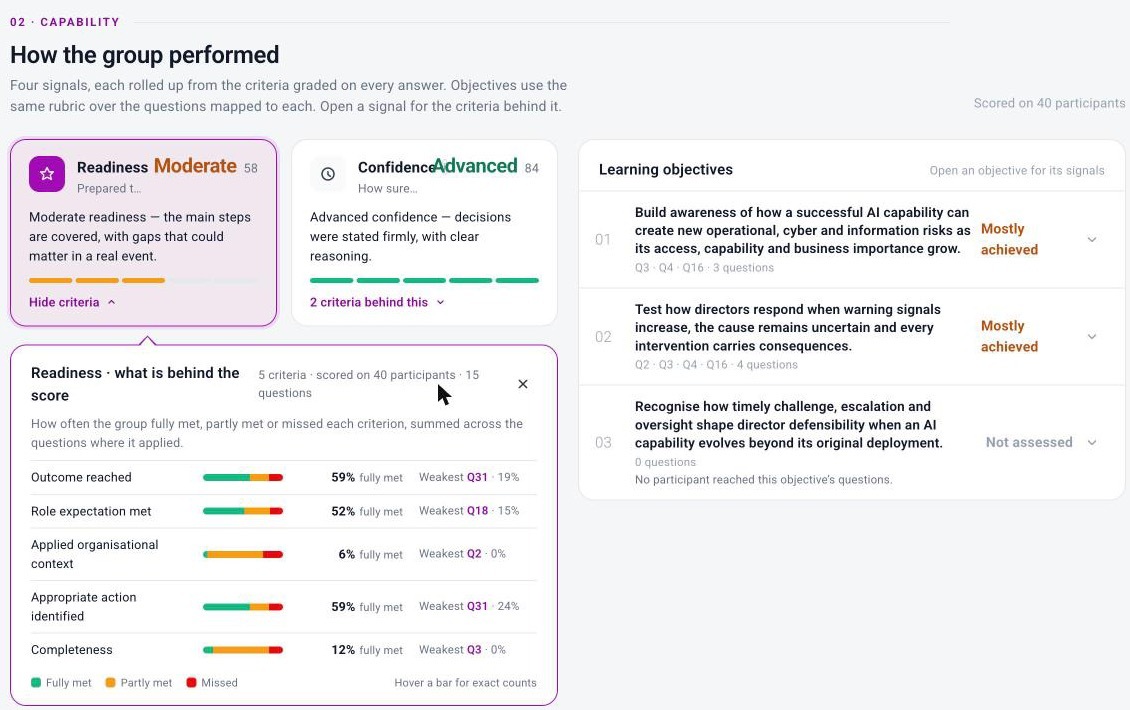
The Readiness card opened to show what is behind the score: each criterion with its % fully met and weakest question.
Learning objectives sits beside the signals. Each objective lists the questions mapped to it (for example Q3 · Q4 · Q16 · 3 questions) and its result: Achieved, Mostly achieved, Partially achieved or Not achieved. An objective nobody reached shows Not assessed. Open an objective to see its Readiness, Confidence and Alignment scores and its weakest question, with a link to open that question.
03 · Insights and actions: What stood out, and what to do
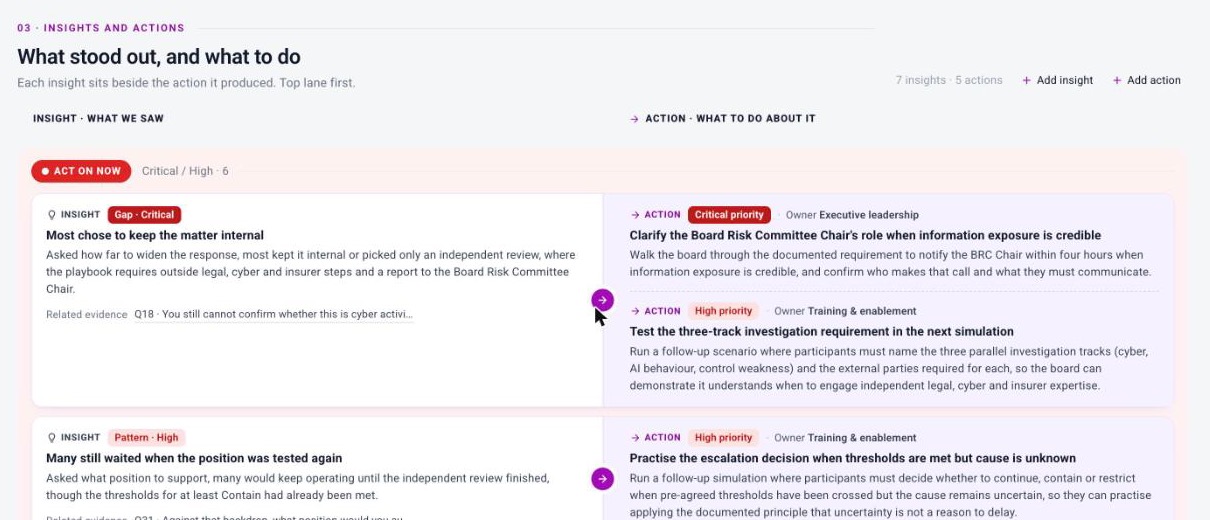
What stood out, and what to do: each insight beside the action it produced, grouped into lanes.
Each insight sits beside the action it produced, under INSIGHT · WHAT WE SAW and ACTION · WHAT TO DO ABOUT IT.
- Insights are grouped into lanes, most urgent first: ACT ON NOW (Critical and High), then NEXT (Medium).
- Each insight has a type and severity tag, such as Gap · Critical or Pattern · High (types are Gap, Pattern and Risk), and Related evidence linking to the questions behind it.
- Each action shows its priority and owner. Some insights show No action suggested.
- Use + Add insight and + Add action to add your own.
Questions tab
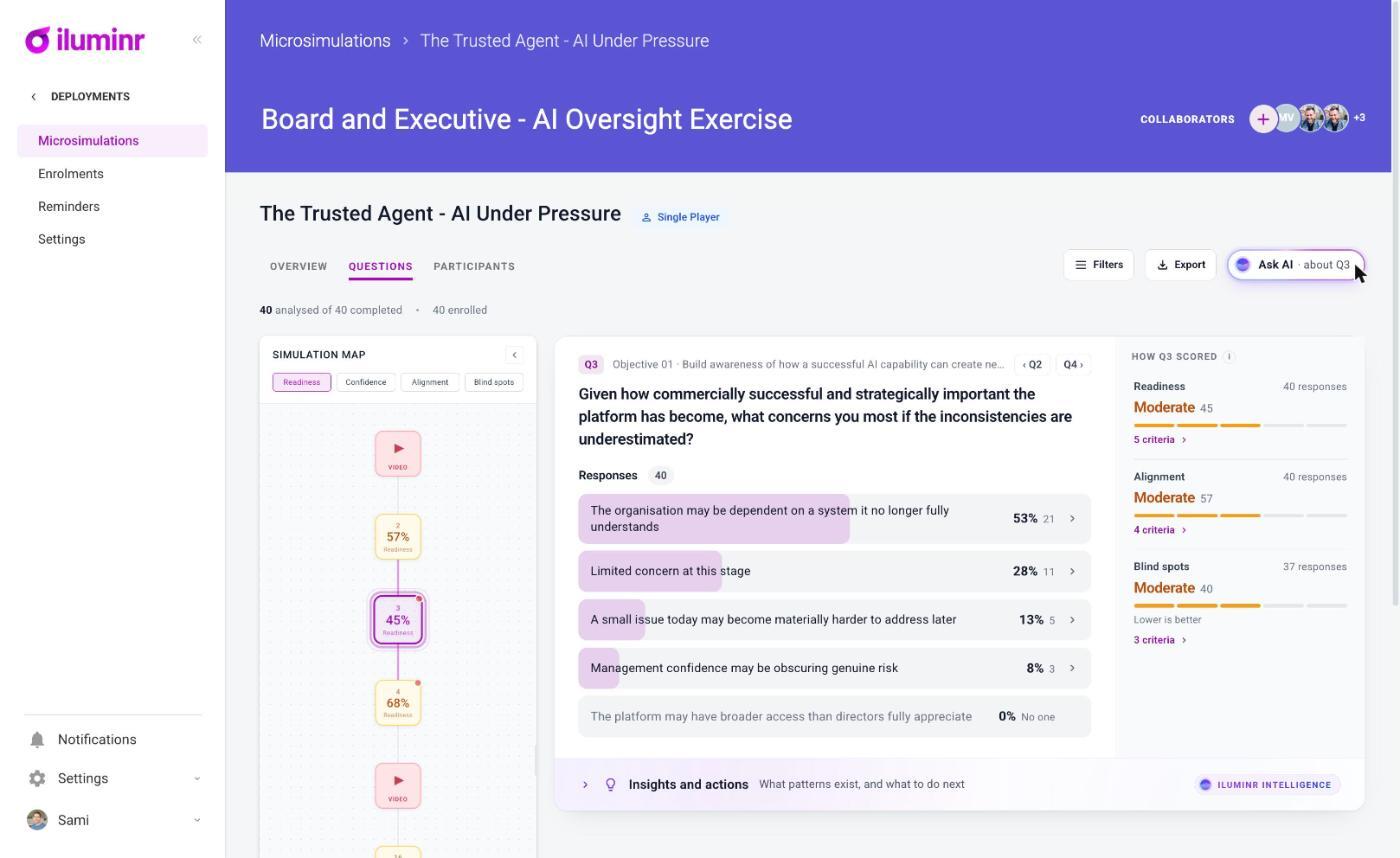
The Questions tab: the simulation map on the left, the question panel in the middle and How Q3 scored on the right.
The Questions tab puts a map of the simulation beside one question at a time.
Simulation map
The Simulation map on the left shows every step of the microsimulation in order.
- Pick a signal at the top of the map: Readiness, Confidence, Alignment or Blind spots.
- Each question shows the group's % for that signal.
- Select a question to open it in the panel.
Media injects show as VIDEO steps. Use ‹ to collapse the map when you want more room.
The question panel
The panel shows:
- the question number (for example Q3) and the learning objective it belongs to (for example Objective 01 · ...)
- ‹ Q2 and Q4 › to step to the previous or next question
- the question text
- Responses, with the number of people who answered
How responses look depends on the question type:
- Single choice: a bar for each option with the % and number of people who chose it, most chosen first. An option nobody picked shows No one. Select › on an option to see who chose it.
- Free text: each answer appears as a tile.
- Media injects: the video plays in the panel, labelled VIDEO · MEDIA INJECT.
How Qn scored
The HOW Qn SCORED rail on the right shows, for each signal on that question:
- the group's level and score, for example Moderate 45
- how many responses it's based on
- the criteria behind it. Select N criteria › to open them.
For Blind spots, lower is better, and the rail says Lower is better.
Insights and actions
Below the panel, Insights and actions · What patterns exist, and what to do next opens to show what to take from the question.
- Content marked ILUMINR INTELLIGENCE is written by AI from the saved results.
- Added by your team holds insights and actions your team writes.
The AI analysis for a question is created on demand:
- Open Insights and actions on the question.
- Select Generate analysis. It takes about 30 seconds.
- The analysis is saved, so everyone who opens the question sees it.
The analysis shows patterns and the reasons behind them, insights rated by severity (gaps, risks and strengths), and suggested actions, each with an owner.
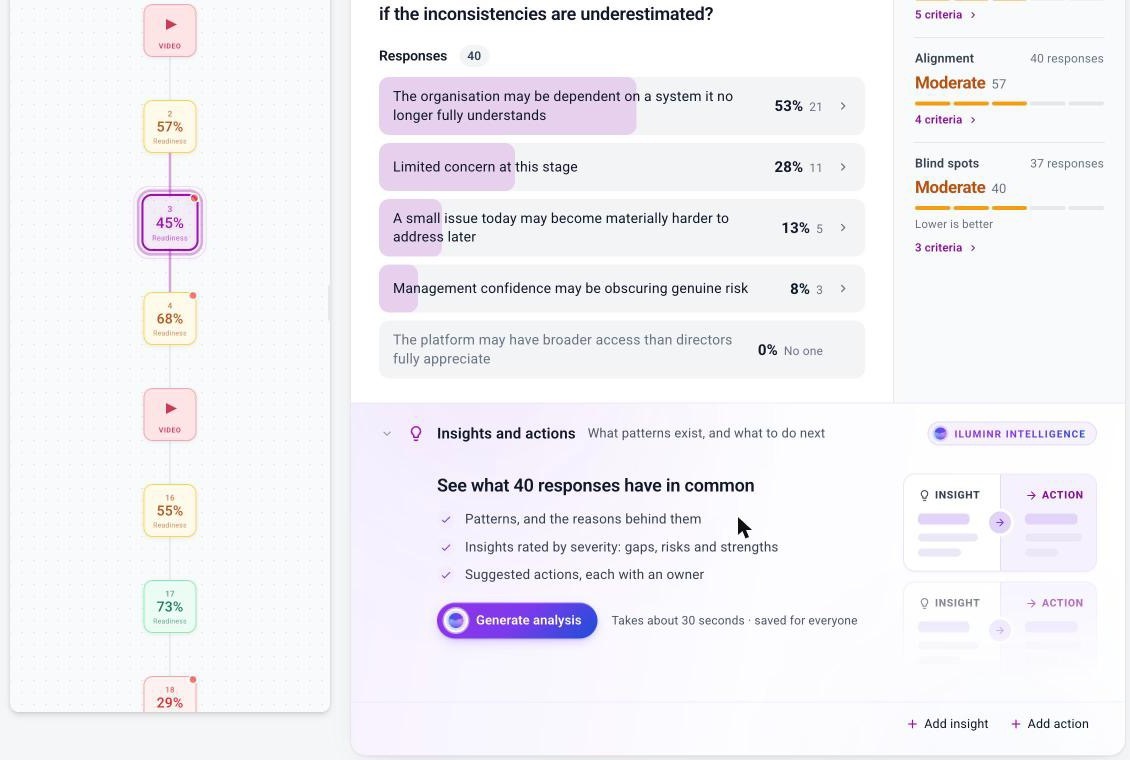
Insights and actions on a question before the analysis is created, with Generate analysis and the Add insight and Add action buttons.
To add your own insight:
- Select + Add insight.
- Fill in the Title and the Insight.
- Choose a Category (for example Behavioural) and a Priority: Low, Medium, High or Critical.
- Optionally, pick existing actions under Linked actions, or leave it as None and add actions later.
- Select Save insight.
To add your own action:
- Select + Add action.
- Fill in the Title, the Action and the Owner.
- Choose a Priority: Low, Medium, High or Critical.
- Optionally, pick the insight it responds to under Linked insight, or leave it as None so the action stands on its own.
- Select Save action.
What you add is shown as added by your team.
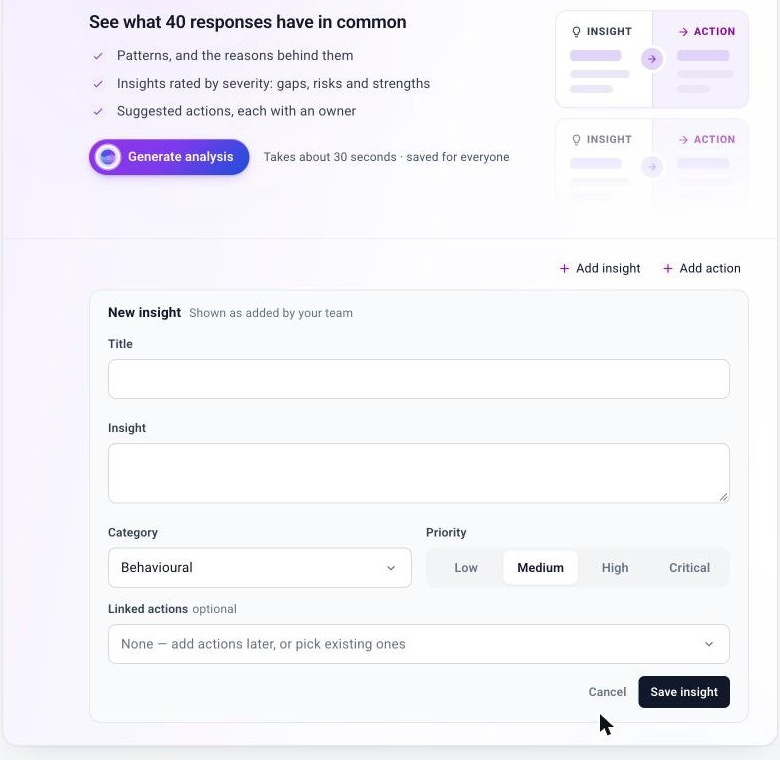
The New insight form: Title, Insight, Category, Priority and optional Linked actions.
Your own insights and actions work even when AI insights are turned off for your account. The signals, their levels, learning objective results and Ask AI need AI insights switched on. To turn AI insights on, ask your Customer Success Manager.
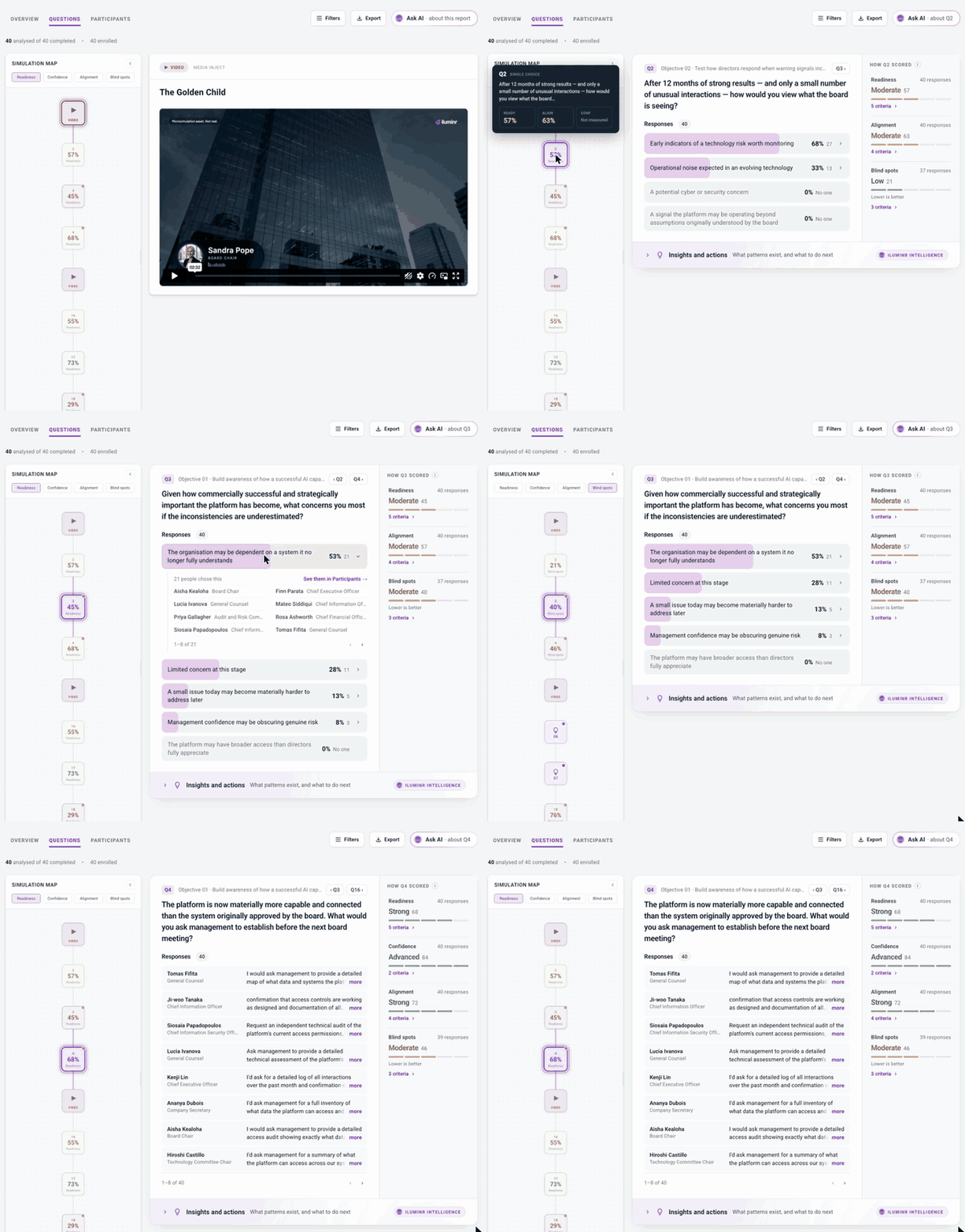
Walking through the Questions tab: choosing a signal on the map, stepping between questions and opening who chose an option.
Participants tab
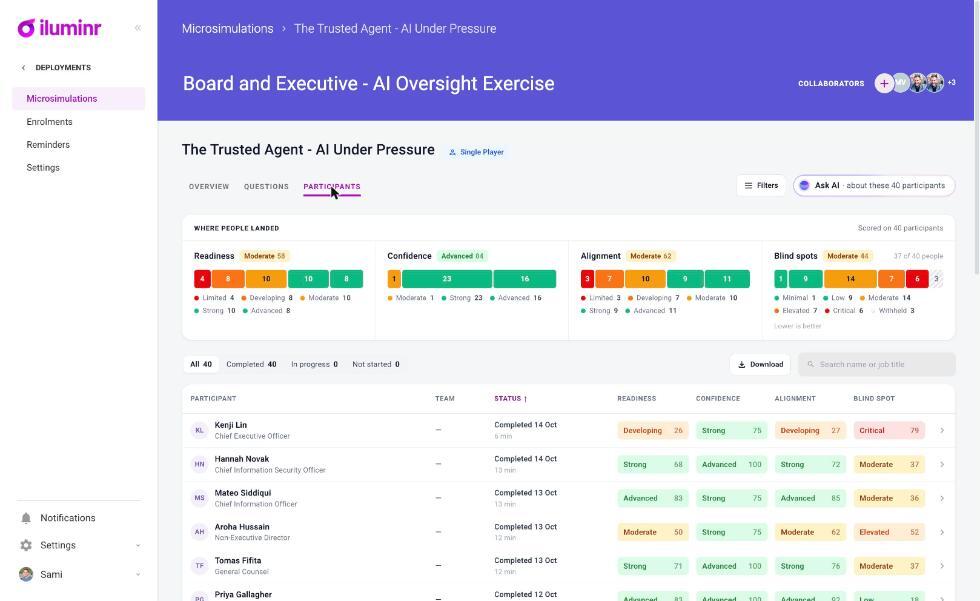
The Participants tab: Where people landed at the top, then the participant table.
Where people landed
WHERE PEOPLE LANDED shows, for each signal, how many people sit at each level, with the group's overall level and score beside it (for example Readiness Moderate 58). The line Scored on N participants tells you how many people it covers.
Find people
- Use the chips to filter by status: All, Completed, In progress, Not started. Each shows a count.
- Type in Search name or job title to find someone.
- Select Download to download the list.
The table
Each row is one participant. The columns are:
- Participant: name and job title
- Team
- Status: for example Completed 14 Oct and how long it took
- Readiness, Confidence, Alignment and Blind spot: a level and score for each
Select › at the end of a row to open that participant. See See one participant's results.