
Certain event response activities or the event itself may be sensitive in nature, requiring only those needed in the response to know it is underway. To aid in this information protection, mark your event as a Private Event to restrict access.
How do I create a new Private Event?
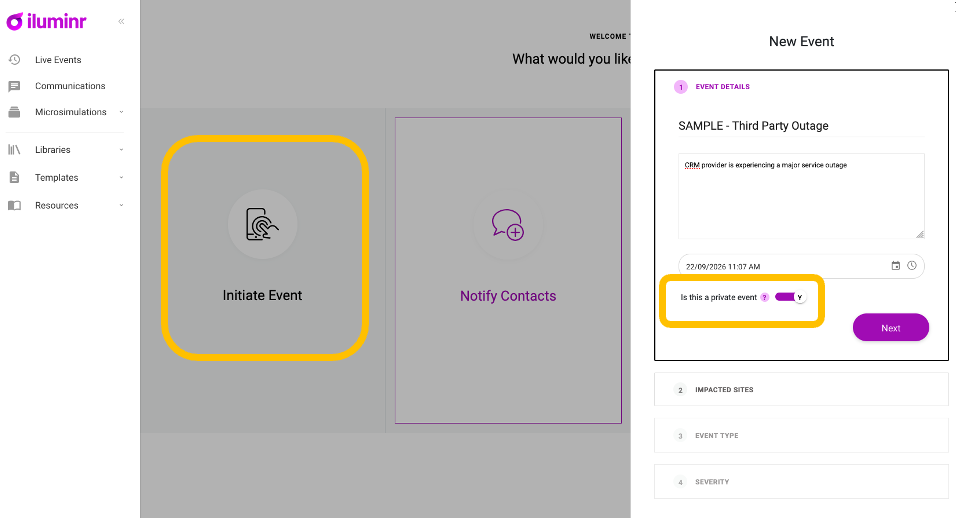
When creating an Event, select the Private Event toggle.
A detailed guide is available at: How do I create an event?
How do I make an existing event a Private Event?
-
Log in with your iluminr credentials.
-
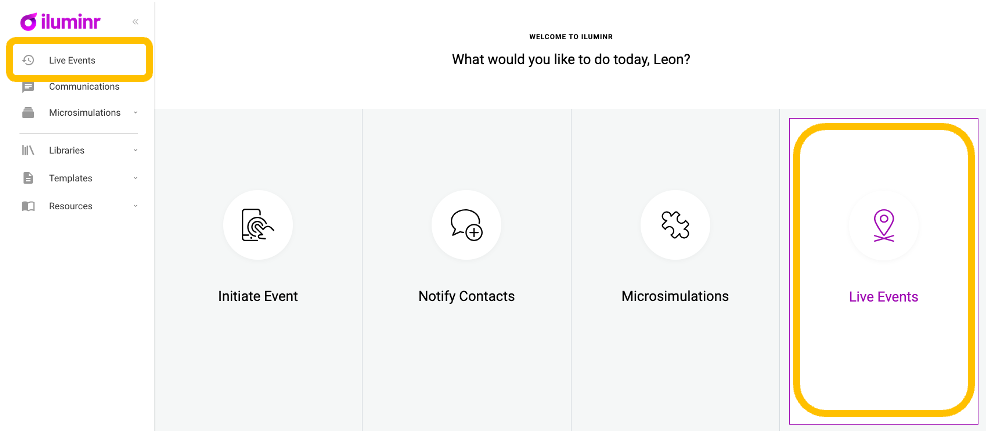
On the Home screen, select Live Events from the Home Screen options OR from the Main Menu
-
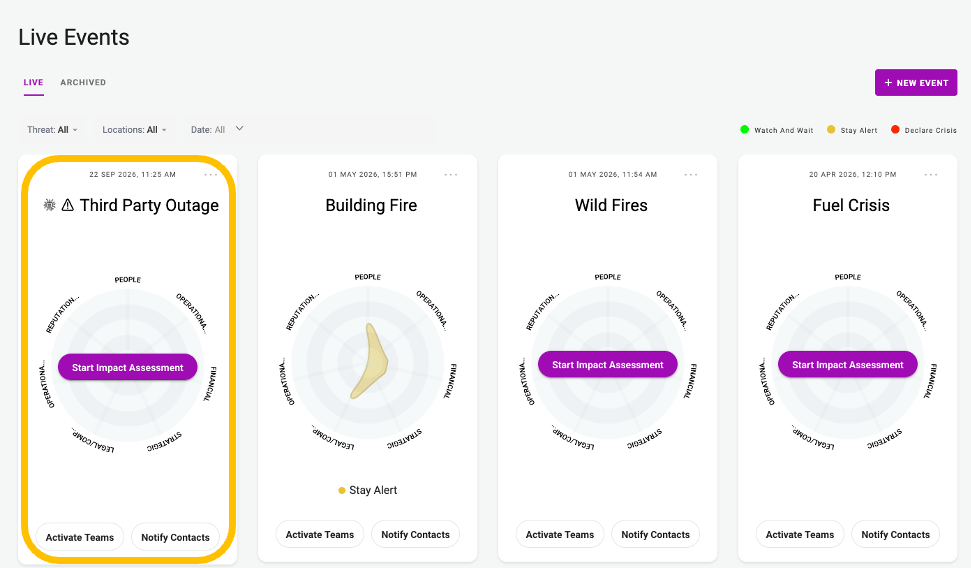
Choose an Event Room you wish to make Private, and select it.
-
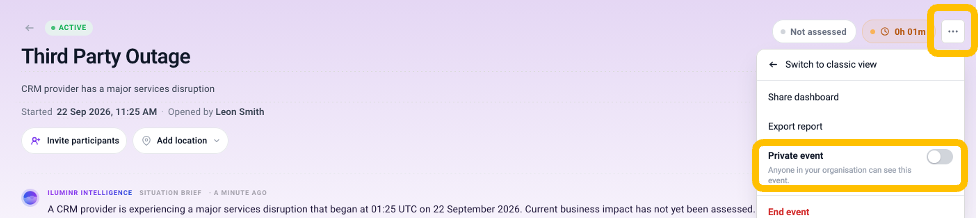
Select the Event Options button (three dots) on the top right of the event room and Select the Private Event Toggle.
-
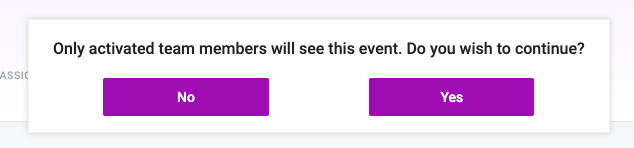
A pop-up message will appear, asking you to confirm your action. Click Yes to make the Event Private.
-
The event room is now private and only accessible to the Creator of the Event Room and any other platform users who have been invited (via Activate Teams).
How do I give a User access to a Private Event?
A Private Event is only accessible by the User who created the Event and any Users who are sent an Activate Teams message from the Private Event.
-
Log in with your iluminr credentials.
-
Select Live Events from the Home Screen Or from the Main Menu
-
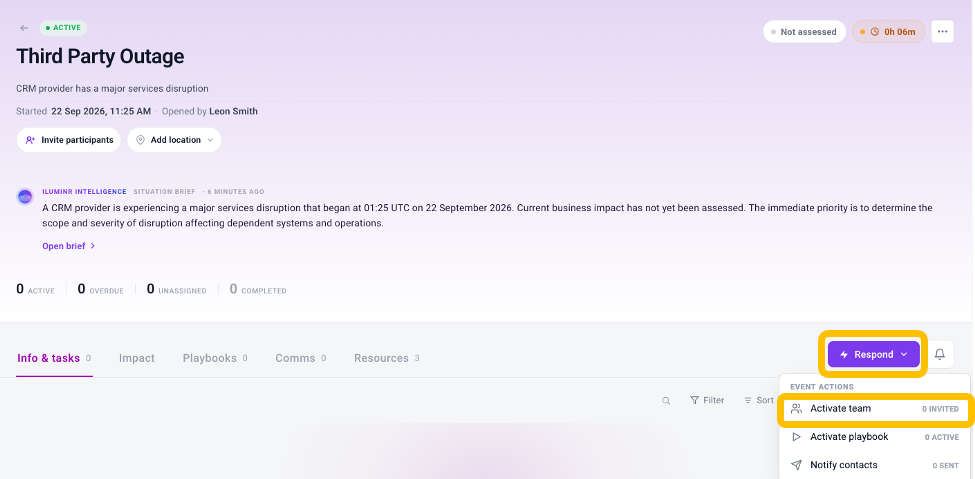
In the Event Room send an Activate Teams notification (via the Respond button) to other Platform Users you would like to give access to the Private Event.
Related Articles:
Need more assistance? Submit a support ticket