
This is an Admin User ONLY capability.
- What is Entra Directory Sync?
- What do I need before I start?
- How do I connect my Entra tenant?
- How does the sync work?
- How do I read the sync overview?
- How do I run a manual sync?
- How do I view the audit trail?
- How do I disconnect Entra?
What is Entra Directory Sync?
Entra Directory Sync connects your organisation's Microsoft Entra (Azure AD) tenant to iluminr. Once connected, iluminr pulls your Entra user records on a regular schedule and creates new contacts in your account from them.
You choose which Entra attributes map to iluminr contact fields, so the contacts iluminr creates land in the right shape for your account.
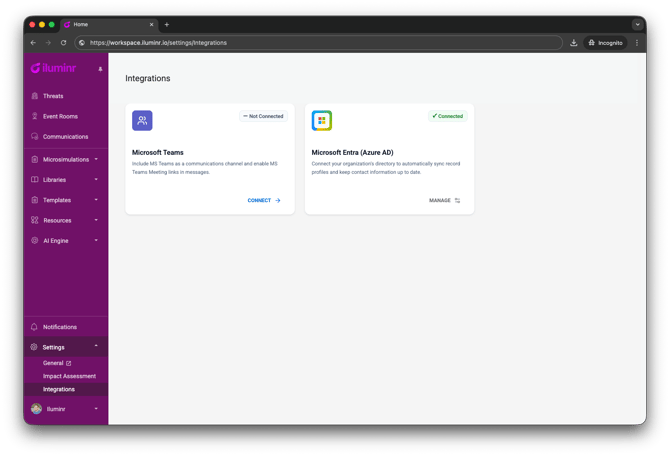
Settings › Integrations showing the Microsoft Entra card
What this integration does and doesn't do
In this release, Entra Directory Sync is one-way and additive only.
What it does
- Creates new iluminr contacts for Entra users that don't exist in iluminr yet, based on the email address.
- Populates the new contact with the Entra attributes you've mapped.
What it does not do (yet)
- It does not update existing iluminr contacts when their details change in Entra. If a user's job title, name, or company changes in Entra after they've already been added, iluminr won't pick up the change.
- It does not deactivate or remove iluminr contacts when a user is removed or disabled in Entra.
- It does not push changes from iluminr back to Entra.
If you require any of the above, contact your Customer Success Manager to discuss further. We do have updates to existing contacts (such as change in job title) and deactivations (removing staff that are no longer with the organisation) on the product roadmap.
What if I already have a contact integration?
If your organisation already brings contacts into iluminr through another route — manual CSV imports, the iluminr Contacts API, or a separate integration — Entra sync will work alongside it without overwriting anything.
A few things to know:
- Entra never overwrites a contact that already exists in iluminr by email. If the email already matches a contact in your account, iluminr leaves that contact alone.
- Entra-sourced contacts and contacts from other sources sit side by side in your People Library. There's no merging on the iluminr side.
- If you're maintaining the same set of users in two places, you may end up with duplicate or near-duplicate contacts to clean up.
If you have an active Contacts API integration, an SCIM provisioner, or a scheduled CSV import for the same group of users, talk to your Customer Success Manager before connecting Entra so you can decide which source should own which records.
What do I need before I start?
- An iluminr account with access to Settings › Integrations.
- Microsoft Entra admin rights to grant app-level consent for iluminr to read your directory
- If you're not the Entra admin for your organisation, you'll need that person available for Step 1.
How do I connect my Entra tenant?
The setup runs across four steps. iluminr saves your progress, so you can stop and come back.
To get started:
- Log in to iluminr and go to Settings in the left navigation menu.
- Select Integrations.
- Click the Microsoft Entra card.
- Click Connect.
Step 1 — Connect your directory
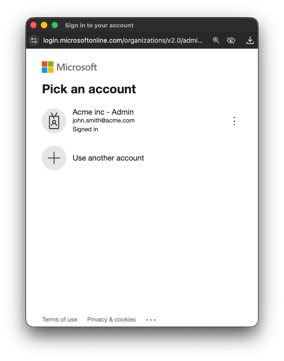
- Click Connect to open a Microsoft sign-in window.
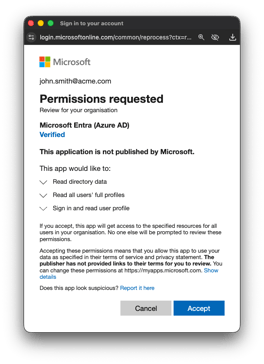
- Have your Entra admin sign in and grant iluminr permission to read directory data (app-only consent).
- Once confirmed, the window closes and iluminr shows the connection as active.
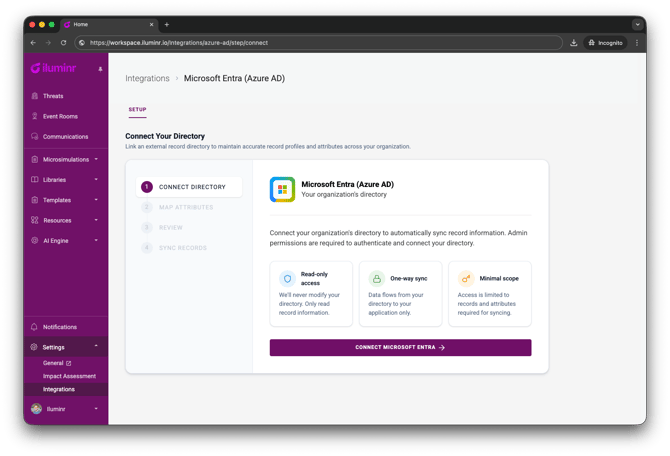
Step 1 — Connect screen with the "Connect" button visible.
Microsoft admin consent popup.
Step 2 — Map attributes
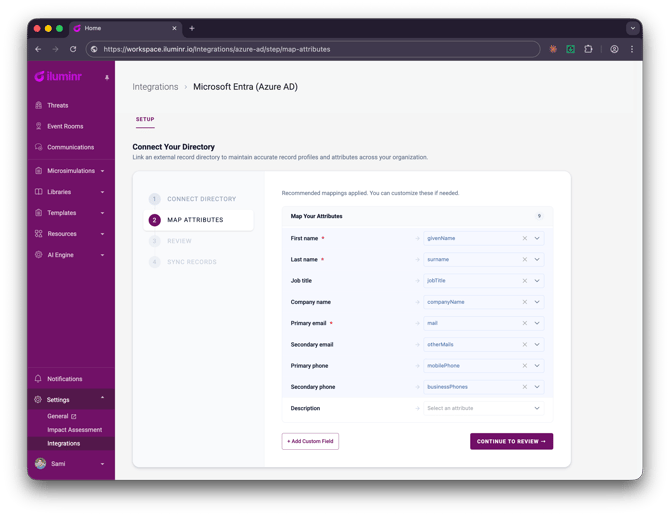
Map each iluminr contact field to the Entra attribute you want it populated from.
The mandatory fields — First name, Last name, and Primary email — are flagged with a red asterisk and can't be removed.
- Click + Add Mapping to add custom fields beyond the iluminr defaults.
- Enter a label, then pick the matching Entra attribute from the dropdown.
- To remove an optional row, click the trash icon next to it. Mandatory rows don't have a trash icon.
- Click SAVE CHANGES when done.
Attribute mapping table with Entra attributes on the left and iluminr fields on the right.
Step 3 — Review & sync
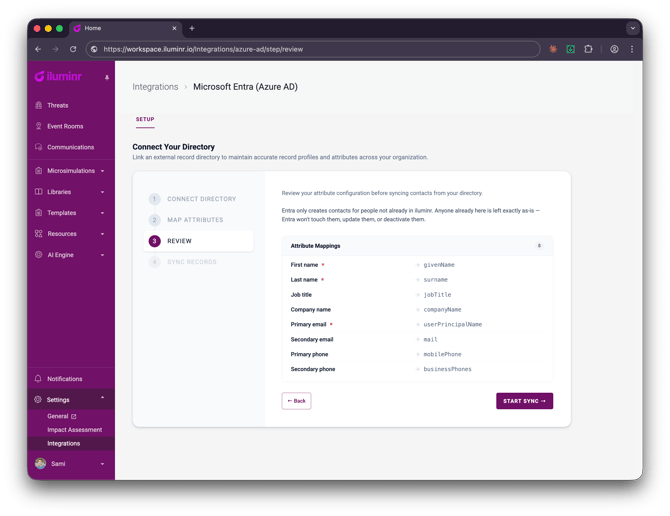
iluminr shows a summary of what the first sync will do: how many new contacts will be created, and how many Entra users will be skipped because they already exist in iluminr. Review the numbers, then click Run sync.
Sync review screen showing contact counts.
Step 4 — Land on your overview dashboard
Once the first sync finishes, you land on the Microsoft Entra overview. This is the dashboard you'll come back to whenever you want to check sync health, run a manual sync, or change your mappings.
How does the sync work?
What gets synced
On each sync, iluminr looks at every active user in your Entra tenant. For users whose email isn't already in your iluminr account, iluminr creates a new contact and fills in the mapped fields. Users who already exist are skipped.
When does it run?
Syncs run automatically in the background on the schedule shown on the dashboard (for example, every 6 hours). You can also run one manually at any time.
How do I read the overview dashboard?
Open Settings › Integrations › Microsoft Entra (Azure AD) to see the overview dashboard.
Full Microsoft Entra overview dashboard showing the header strip, four KPI cards, Sync History chart, Data Quality Insights, and Attribute Mappings panels.
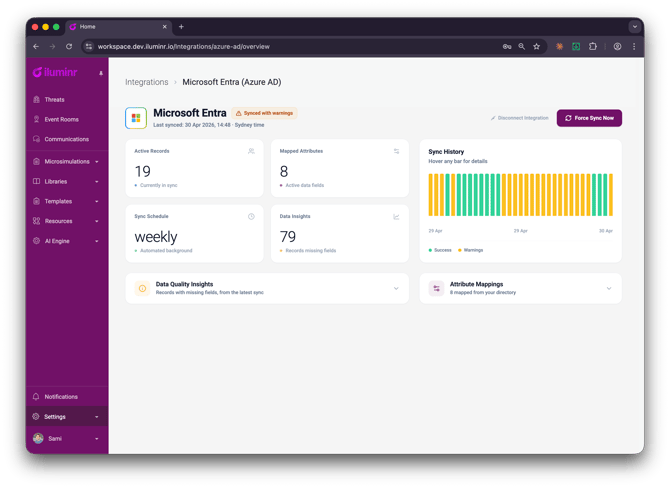
The header strip across the top shows:
- The Microsoft Entra logo and the integration name
- A status pill (see below)
- The last successful sync time, in your timezone
- A Disconnect Integration link
- A Force Sync Now button
Status pill
The pill tells you the state of your most recent sync. Hover over it for a fuller explanation.
| Status | What it means |
|---|---|
| Synced successfully | The last sync completed without warnings or errors. |
| Synced with warnings | The sync completed, but some records had missing or skipped data. Open Data Quality Insights to see which fields are affected. |
| Sync failed | The sync didn't complete. Use Force Sync Now to retry, or check your connection. |
| Syncing now | A sync is in progress. Some cards show "Updating…" until it finishes. |
KPI cards
Four cards summarise the integration at a glance:
- Active Records — how many contacts in iluminr have been added by Entra so far.
- Mapped Attributes — how many directory fields are mapped to iluminr fields. Click the icon to jump to the mappings panel.
- Sync Schedule — how often the sync runs in the background (for example, 6h).
- Data Insights — total number of records with one or more missing fields in the last sync. Click to scroll to Data Quality Insights.
Sync History chart
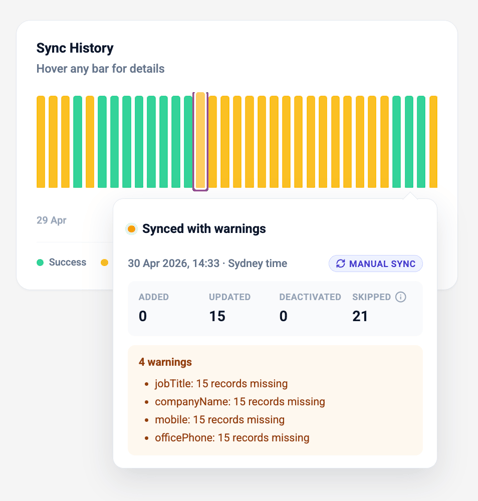
The chart on the right shows up to the last 30 syncs, oldest on the left, newest on the right. Each bar is colour-coded:
- Green — synced successfully
- Amber — synced with warnings
- Red — sync failed
- Blue (pulsing) — sync currently in progress
Hover over any bar to see a popover with the full breakdown of that sync (timestamp, records processed, added, skipped, errored) plus the list of warnings and errors raised. Warnings lead with the field, for example "Company Name: 36 records missing".
Sync History chart with the hover popover open on one bar, showing the full breakdown and warnings list.
How do I run a sync manually?
Click Force Sync Now in the top-right of the overview. iluminr starts a full sync immediately, regardless of when the next scheduled one is due. While it runs, the status pill shows Syncing now and the KPI cards show "Updating…".
How do I see what's missing in my sync data?
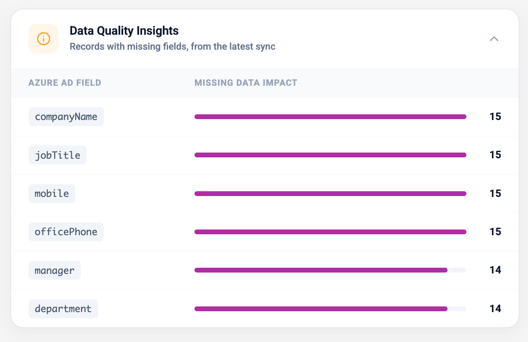
The Data Quality Insights panel (lower-left) lists the Entra fields that had missing values in the most recent sync, ranked by how many records were affected.
Each row shows the Azure AD field name and a horizontal bar with the count next to it. Bars are scaled relative to the worst offender in the list, so the longest bar represents the field with the most missing data.
Hover over a row to see when the issue was reported.
If a sync is running, the panel shows a spinner and refreshes automatically once the sync completes.
Data Quality Insights panel showing companyName, jobTitle, state, and manager with their relative bars and record counts.
Use this panel to find data hygiene issues in your Entra directory and fix them at the source.
How do I edit my attribute mappings later?
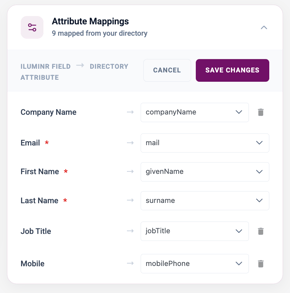
The Attribute Mappings panel (lower-right) shows your current mappings in read-only mode. To change them:
- Click the panel header to expand it if collapsed.
- Click Edit (or any field row) to enter edit mode.
- Change a directory attribute by picking a different option from the dropdown.
- Add a new mapping with + Add Mapping — enter the iluminr label and pick the Entra attribute.
- Remove an optional mapping with the trash icon. Required rows (red asterisk) can't be removed.
- Click SAVE CHANGES to apply, or CANCEL to discard.
Attribute Mappings panel in edit mode with the dropdowns open, the trash icons visible, and the SAVE CHANGES / CANCEL buttons at the top.
.
Note: changes to mappings don't retroactively update contacts already created by previous syncs.
How do I disconnect Entra?
Click Disconnect Integration in the top-right of the overview. A confirmation dialog asks you to type DISCONNECT before the button enables.
Disconnect confirmation modal with the "Type DISCONNECT below" input field.
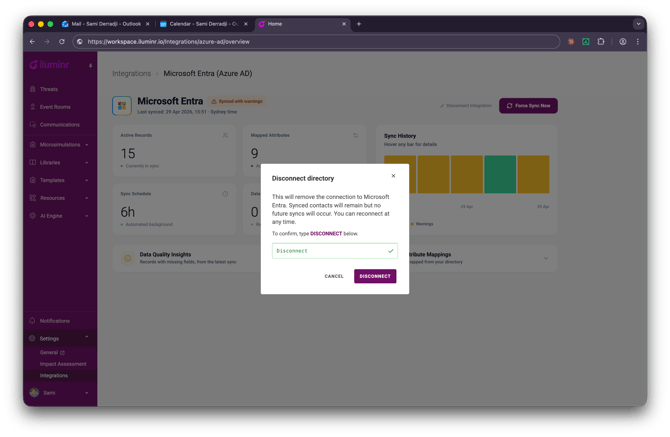
Disconnecting stops all future syncs. Contacts already added to your account stay where they are — they're not deleted.
Related Articles
- Get to know the People tab in the People Library
- 5. People Management — Contacts
- 3. People Management — Users
- How do I access iluminr with SSO?
Need more assistance? Submit a support ticket