
When a report is ready, preview it, export it as a PDF or Word document, and publish it. Reports are available for multiplayer microsimulations. Support for single player microsimulations is coming soon.
If new results have come in since you built the report, select Update report with latest results before you export. See How do I build a report from microsim data?.
Preview a report
- Open the report.
- Select Preview in the toolbar.
Preview opens the report full screen, starting with the cover page, so you can check the order and content. Select Back to editing to return, or the X in the top-right corner to close.
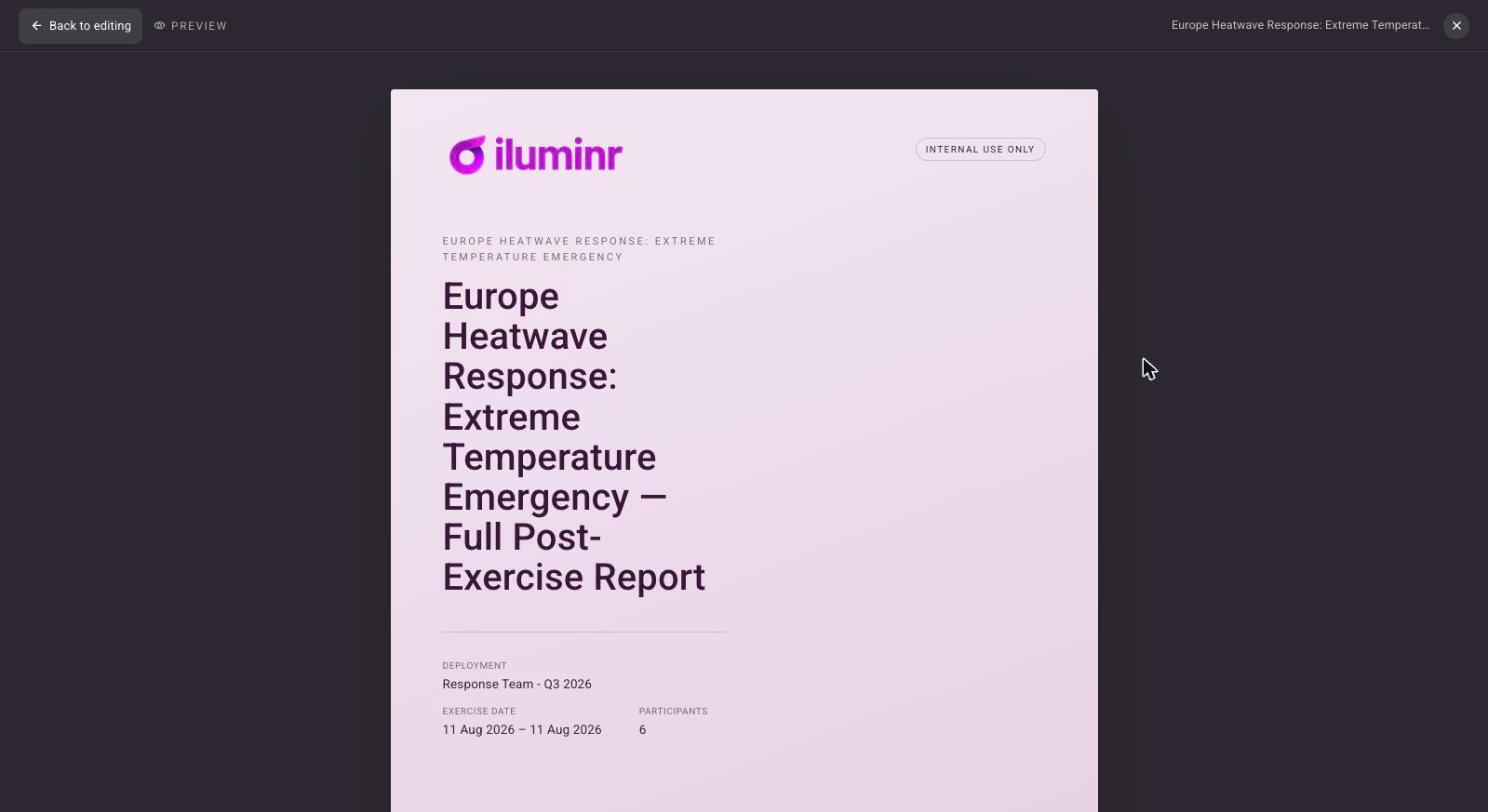
Preview opens the report full screen, starting with the cover page
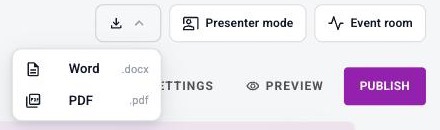
The report toolbar with Settings, Preview and Publish, and the export menu open
Export to PDF or Word
- Open the report.
- Select the download icon at the top right of the page, next to Presenter mode.
- Choose Word (.docx) or PDF (.pdf).
Use PDF for a finished document to send or file. Use Word when you want to edit the wording further.
Publish a report
Select Publish in the toolbar when the report is final. A published report shows Published in the Reports list, and unfinished reports show Draft.
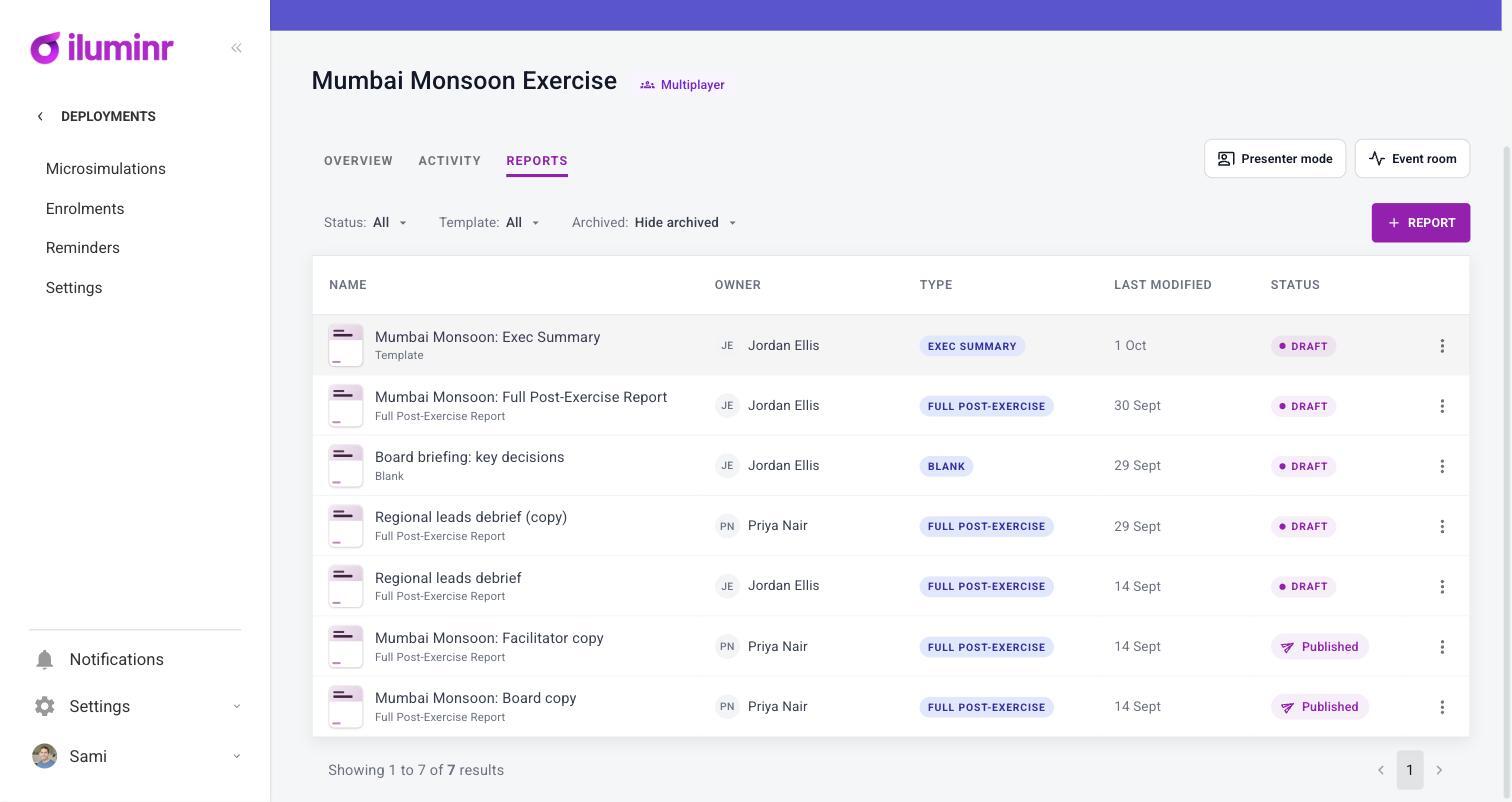
The Reports list showing Draft and Published reports