
This is an admin only feature.
What is QR code self-enrolment?
When self-enrolment is enabled for a deployment, iluminr gives you two ways to share access: a copy-paste link and a QR code. The QR code is a scannable image — practical for printed materials, posters, slide decks, or in-room displays where a clickable link doesn't work.
Both options add learners to the same squad. The same rules apply to both: links and codes don't expire, and no approval step is required before a learner joins.
How do I generate a QR code?
- In the left navigation, expand Microsimulations and select Deployments.
- Click into an existing deployment, or click + New Deployment.
- Click Self-Enrol to open the self-enrolment pop-up.
- Click Enable Self-Enrolment if not already enabled.
- Click the QR Code tab.
- Click Download to save the QR code as an image.
Self-Enrol pop-up with the QR Code tab selected and the QR code image visible.
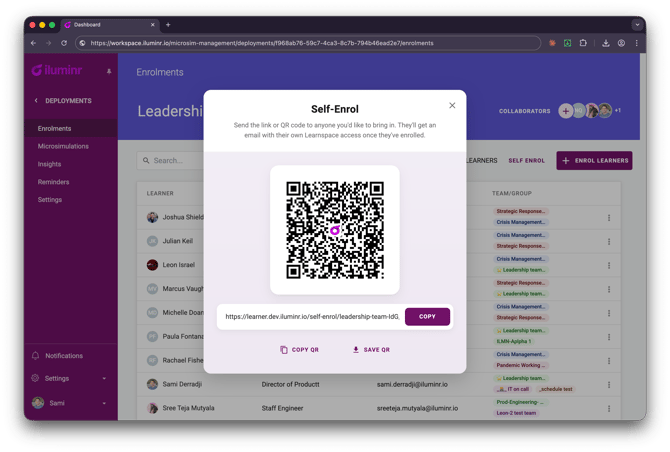
Share the downloaded image however works best — print it, paste it into a deck, or display it on screen.
How do learners the QR code?
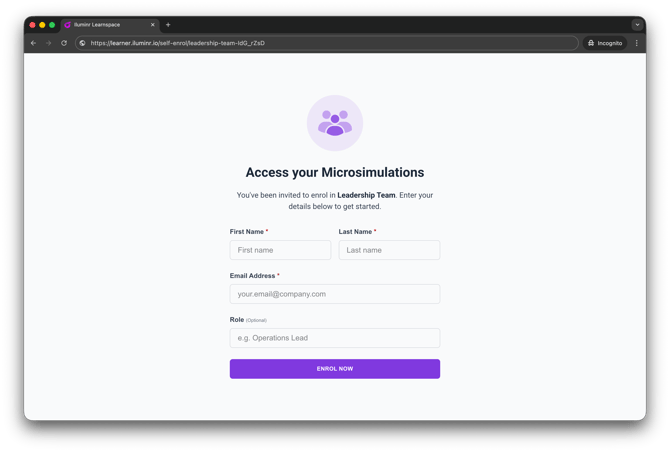
Learners scan the QR code with their phone camera or a scanner app. This opens the self-enrolment form in their browser. They enter their first name, last name, and email address, then click Enrol. They're added to the deployment and receive access to their Learnspace.
Learner self-enrolment form on mobile after scanning the QR code.
QR code vs. link — when to use which
| Situation | Use |
|---|---|
| Sharing via email or chat | Copy link |
| Embedding in a document or LMS | Copy link |
| Printed materials or posters | QR code |
| Slide decks or in-room displays during a session | QR code |
Related Articles
- How do I invite Learners to self-enrol in a deployment?
- What notifications do Learners receive?
- Get to know the Learnspace
Need more assistance? Submit a support ticket